
How to Add Floor Plans to a Property Presentation
Start with an existing plan, check its accuracy and permission to publish, then upload the version that explains the layout. Link configured spaces to their photographs, test the presentation on a phone and desktop, and share its URL. A floor plan is optional in Arcvist.
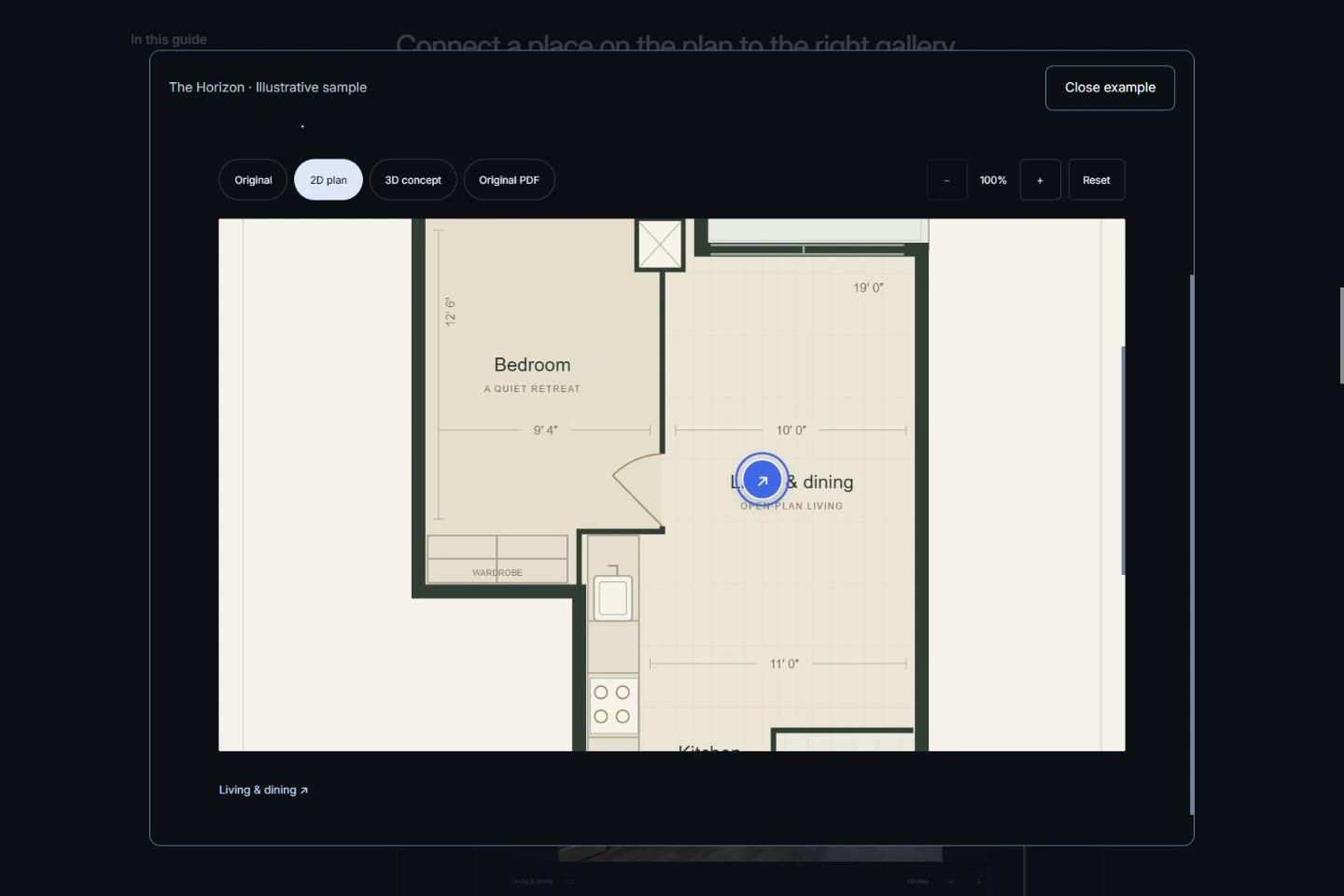
Use the plan to answer a different question from the photo.
A photograph shows how a room looks from one position. A plan can explain how that room connects to the entrance, kitchen or next bedroom. Read them together: identify adjacent spaces, the route between levels and the relationship between interior rooms and outdoor areas actually shown.
For a buyer-facing property presentation, keep the plan close to its room photographs. It helps explain layout; it does not establish measurements, condition or permission to alter a building. This guide covers presenting supplied plans, rather than drafting, scanning or measuring a property.
Choose between original, 2D and 3D concept plans.
Keep each file’s role clear. The source may come from an owner, photographer, architect or another authorised provider. Verify that you can publish it and that it describes this property.
| Version | Useful for | Check before sharing |
|---|---|---|
| Original | Preserving the supplied source drawing or PDF. | Revision, property identity, room labels and publication permission. |
| 2D presentation | A clear, simplified layout beside room photographs. | Agreement with the source, readable labels and correct room links. |
| 3D concept | Illustrating spatial relationships or possible furnishings. | Label it as a concept. It may not represent measured dimensions, current finishes or existing furniture. |
Upload only versions you have. A 3D concept image is not a certified technical drawing or an environment a buyer can walk through. An original PDF does not automatically become a 2D or 3D illustration.
Choose the simplest plan that explains this property.
- Condo: a readable unit plan can clarify the entrance, bedroom separation and balcony access. Distinguish the unit from shared building amenities.
- Detached house: make floor names and stairs clear. For several levels, prepare a legible combined sheet; do not shrink labels until they disappear.
- Rental: show the supplied layout and actual rooms without implying furniture, permitted occupancy or access arrangements you have not checked.
- Luxury residence: add a supplied concept only if it clarifies scale or relationships beyond the photographs. More versions are not automatically more useful.
- Commercial space: distinguish current rooms from a proposed fit-out. Confirm any advertising and measurement requirements with the appropriate provider.
Arcvist currently has one upload slot per displayed image version, rather than a separate plan collection for every storey. Use clear labels in your supplied sheet. The Toronto condo guide and house presentation guide cover the wider property organisation.
Connect a place on the plan to the right gallery.
Suppose a two-bedroom property has galleries named Living Room, Kitchen, Primary Bedroom, Bedroom 2 and Bathroom. In the optional floor-plan editor, select an existing room, then place its pin on the appropriate uploaded image version. Check each association yourself; Arcvist does not recognise rooms from the drawing.
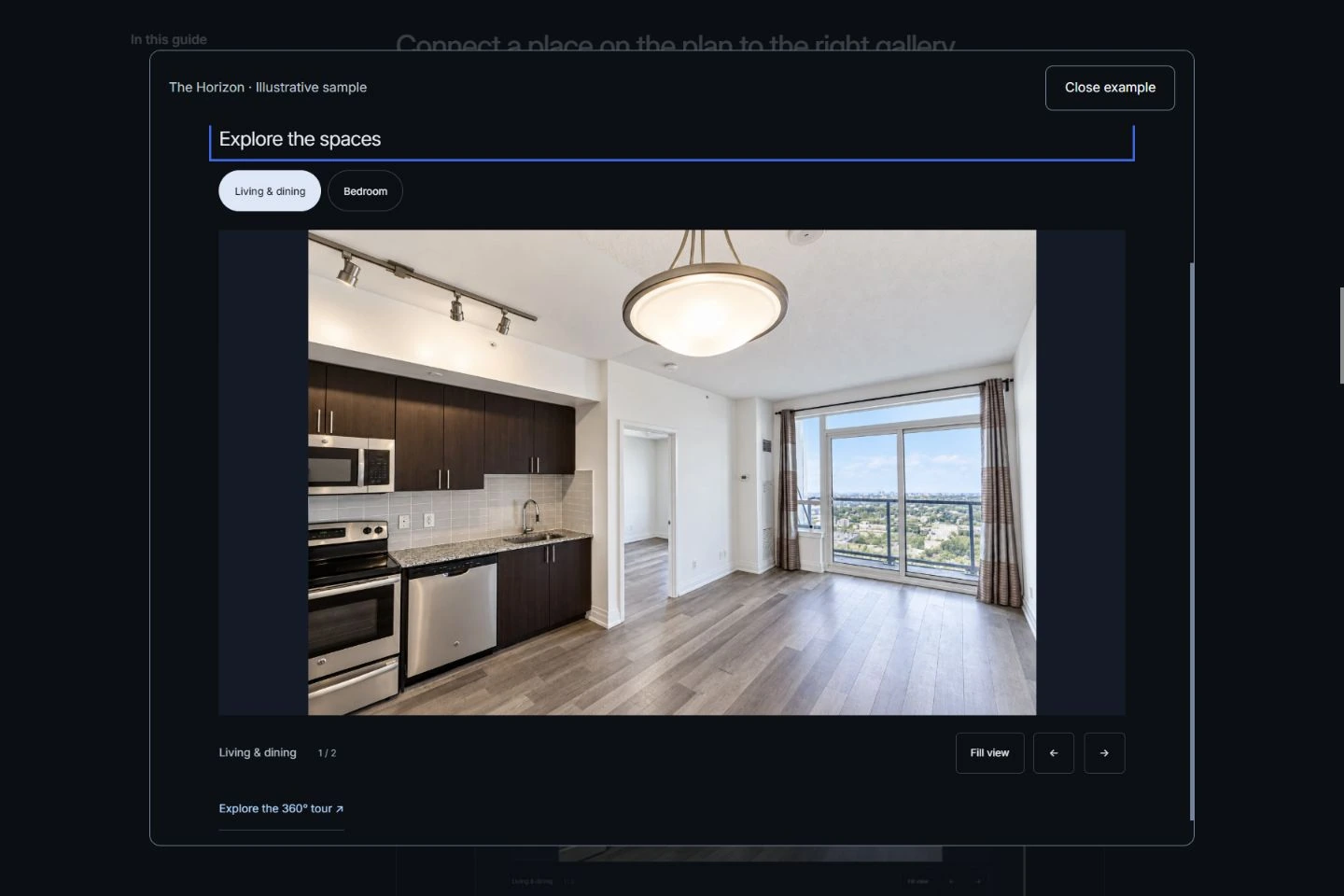
A configured pin opens that room’s photo gallery when it contains photographs. A room without photos does not become a working public gallery simply because you placed a pin. If you replace a plan image, its pins are removed so that old coordinates do not silently point at a different layout. Configure and test them again.
The real Horizon sample below has just one configured connection: on 2D plan, open Living & dining. Its other rooms are not presented as mapped. This sample is separate from the illustrative two-bedroom workflow.
Prepare a readable file before uploading.
Rotate the source upright and preserve its aspect ratio. Crop empty margins carefully without cutting off an entrance, stairs, legend or relevant notes. Read the smallest room label at the size a buyer will actually use. If it is blurry before uploading, obtain a better export rather than enlarging the same pixels.
The current builder accepts JPG, PNG, WebP and AVIF images for plan versions, and a PDF in the Original slot. The server’s per-file ceiling is 40 MB; your remaining account storage also applies. These are upload limits, not a recommended resolution. SVG is used by the curated sample but is not an accepted creator upload format.
A PDF remains a separately opened document, not an inline interactive drawing. If you choose a PDF as Original, supply a separate 2D image when you need image zoom and room pins. Check PDF readability on a phone and remove unnecessary private contact details or identifying notes from any public copy. Keep an untouched source file privately.
Verify what the drawing represents.
Check room labels, measurements, the revision date and any changes made since the plan was prepared. Confirm how finished areas, additions and renovations are represented. A proposed wall removal must not look like the property’s current condition. Identify conceptual layouts clearly and retain permission to publish.
RECO’s case guidance on inaccurate listing information reinforces the need for agents to verify advertised property claims. Its example concerns unverified upgrades; it is not a floor-plan measurement standard.
HCRA’s floor-area directive addresses its licensees’ marketing of new homes. Do not apply that builder-specific framework as a universal rule for every resale plan. Ask your brokerage and qualified provider which requirements fit the actual situation. Arcvist displays supplied information; it does not verify dimensions or insert missing measurements.
Add the available plan in Arcvist.
- Open a project or create one. Choose a template and organise the room photographs you have. The photo-to-presentation walkthrough covers the full creation process.
- Go to Final details. Open the optional Floor plan area. This is separate from the optional panorama step.
- Add supplied versions. Use Original, 2D presentation or 3D concept as appropriate. One version is enough. No plan, photo or property fact is compulsory.
- Review the actual preview. Wait for processing, then confirm the intended file appears. A PDF remains a document; image versions can carry pins.
- Link existing rooms where useful. Choose a room and tap its position on the image. Keyboard users can place a centre pin and adjust it with the direction controls.
- Preview desktop and mobile. Check the smallest labels, zoom, scroll and every configured gallery destination. Review a PDF in the recipient’s browser too.
- Publish or update. Wait for saving and reopen the public URL to verify the result. Saved changes update the active short link.
The final shared presentation starts at the selected template’s main menu. This article’s example opens the plan panel directly for demonstration; it does not change the published entry experience. See the floor-plan feature example or compare the ten presentation templates.
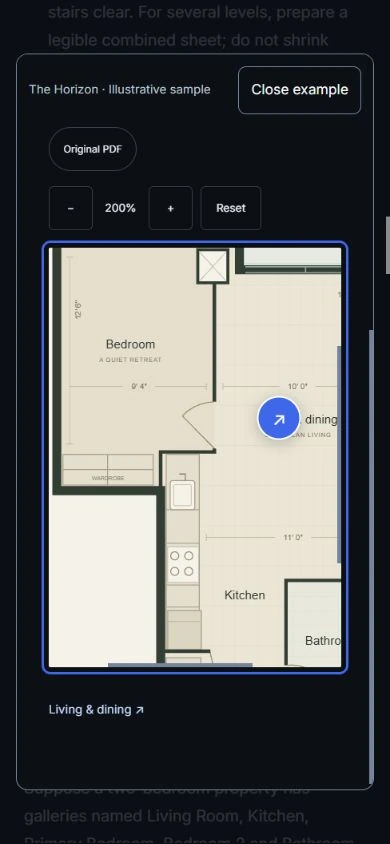
Adding a floor plan to a two-bedroom Toronto condo presentation.
Illustrative workflow, not an active listing. An agent has permission to use a current unit plan and approved photographs of the five named spaces above. They compare the room labels with the source and identify the correct bedroom and bathroom before uploading anything.
The agent uploads the original, adds a separately supplied 2D version if it makes the layout clearer, and links only galleries with photographs. They check that the Primary Bedroom pin opens that gallery rather than Bedroom 2, review the phone preview and publish. They then open the shared menu, choose the floor plan and test the links once more before sending the URL. No address, measurement, price or sales result is implied by this example.
A single property presentation website can keep that plan beside the photographs without requiring a 3D concept or panorama.
Catch the mistakes that a polished viewer cannot fix.
- Blurry small text: obtain a better source export and test the actual phone view.
- Outdated layout or wrong room labels: reconcile the drawing with current property information before replacing the file.
- Unverified dimensions: ask the provider to confirm their basis; do not fill gaps with estimates.
- Concept mistaken for current condition: label proposed changes, furnishings and unbuilt renovations explicitly.
- Missing permission or private notes: confirm publication rights and review the public copy.
- Broken room links: add the intended photos, configure pins on the correct version and retest after any replacement.
A short check before sharing.
- The supplied version belongs to this property and is current.
- You have permission to publish it; private notes are removed.
- Labels, orientation and relevant boundaries are readable.
- Original and concept material are clearly distinguished.
- Every public pin opens the intended gallery.
- Phone zoom, scrolling and any PDF have been reviewed.
- The active link opens at the selected menu and shows the saved files.
This checks any plan you choose to include. It does not make a floor plan or another property field required.
Common questions.
Do I need a floor plan to create an Arcvist presentation?
No. Plans, property details, photographs and panoramas are optional. Publish the content you have and add a suitable plan later.
Can I use an existing PDF floor plan?
Yes. The optional floor-plan area accepts an original PDF. It remains a document visitors can open or download; Arcvist does not extract a drawing or convert it into a 3D model. Add a separately supplied 2D image for an inline plan and room pins.
Does Arcvist automatically generate a 3D plan?
No. Original, 2D and 3D concept versions are separate supplied files. A concept illustration is not a certified measurement or a navigable 3D environment.
Can a floor plan link to room photographs?
Yes. In the builder, select an existing space and place its pin on the appropriate image version. The public link opens that space’s gallery when it has photographs. Pins are configured manually, not inferred from the drawing.
Can I update the plan after publishing?
Yes. Saved changes update an active presentation at its existing short link. Wait for media processing and saving, then test the public plan, selected versions and room links again.
Can mobile visitors view the floor plan?
Yes. Image plans have zoom controls and a scrollable viewing area. The original PDF opens separately. Check small room labels and each configured gallery link on a phone before sharing.