
How to Create an Interactive Property Presentation from Photos
To create an interactive property presentation, choose a design, group your photos by space, add the details you want buyers to see, preview the result on a phone, and share the presentation link. A floor plan or 360° photo can add context, but neither needs to be part of your first version.
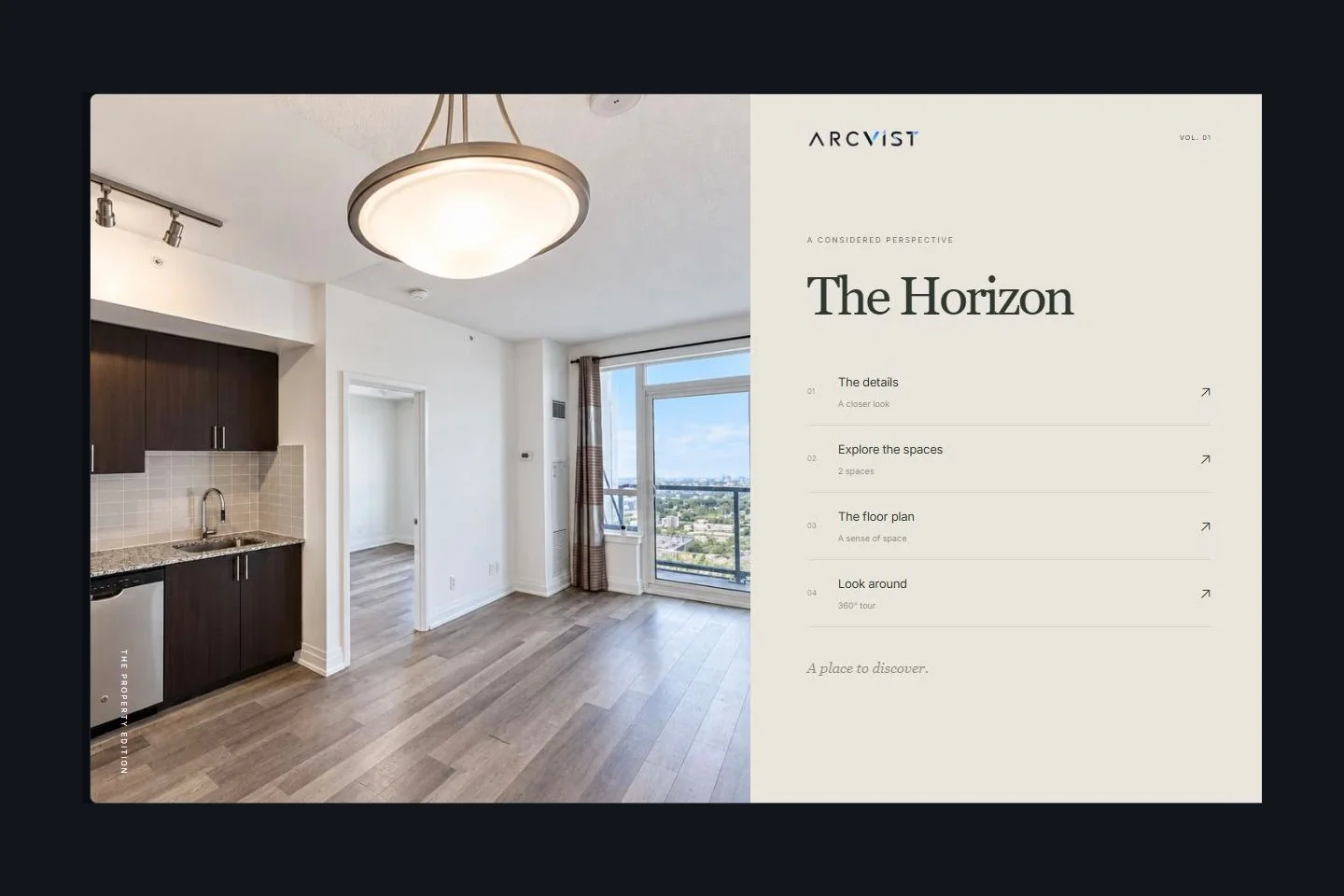
What is an interactive property presentation?
An interactive property presentation is a browser-based showcase that lets a visitor choose how to explore a property. In Arcvist, the selected main menu leads to the content you provide: property information, room galleries, optional plans, panoramic views and public contact actions.
A photo folder gives someone a set of files. A conventional PDF places information on fixed pages. An interactive presentation connects the material through a menu, so a buyer can move from a bedroom gallery to a plan and return to another space.
This guide is for real estate professionals preparing a property showcase for prospective buyers. A seller-facing pitch used to win a listing agreement has a different audience and purpose.
Start with the material you already have.
Gather the files and information you have permission to present. Keep the original copies together so you can replace a photograph or correct a detail later.
- Photos: exterior and interior images, with enough resolution to inspect on a larger screen.
- Approved facts: the property name, description and other details you can confirm.
- Optional plans: an existing original, PDF, 2D plan or supplied 3D concept image.
- Optional panoramas: genuine panoramic captures for the 360° viewer.
- Optional contact information: the agent’s public contact details that should appear to visitors.
Arcvist allows you to skip content stages and publish an incomplete presentation. That flexibility is useful while preparing a project, but useful photos, clear room names and checked facts help a visitor understand the property. Preview what a buyer will actually see before sharing widely.
Step 1: Choose a presentation design.
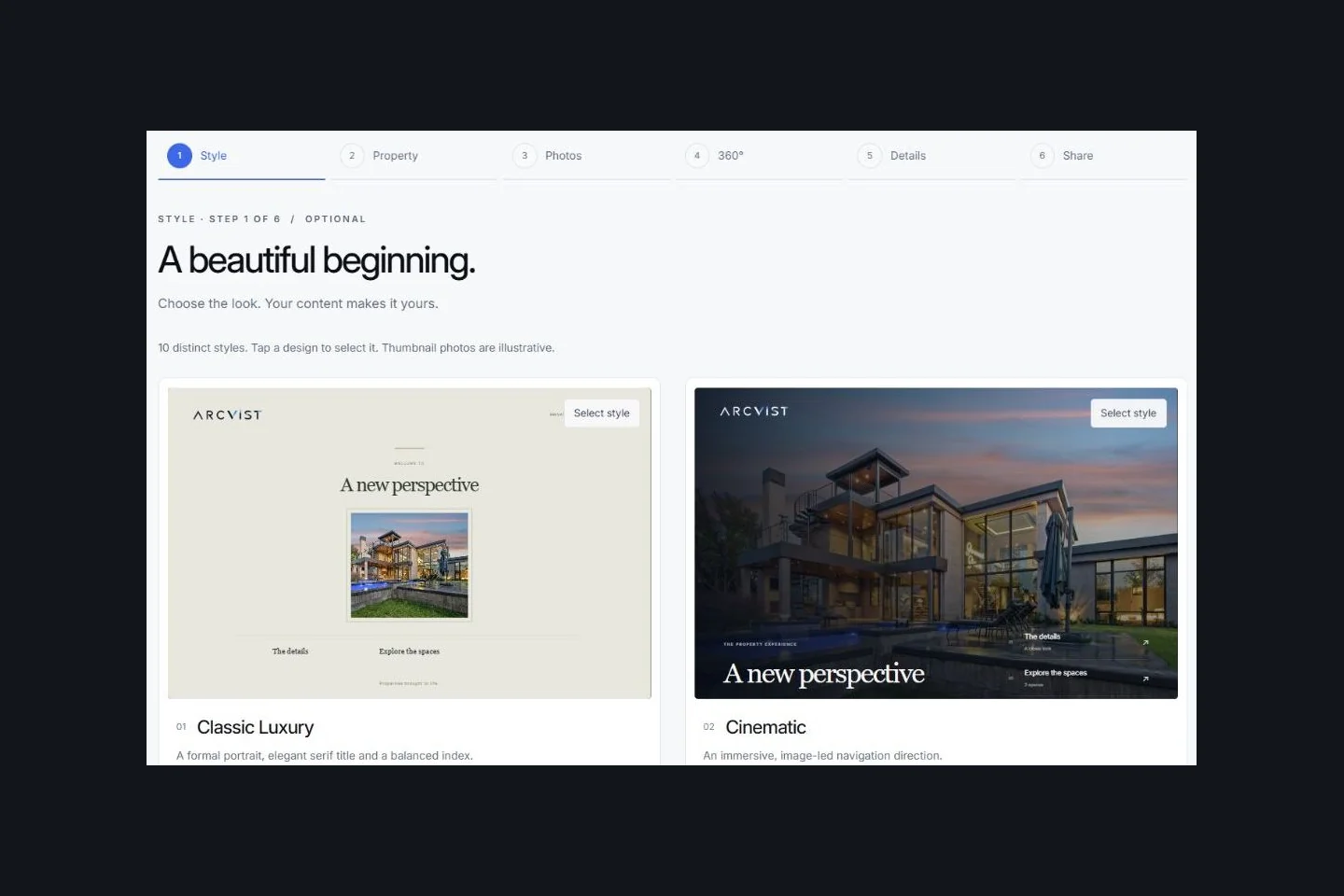
Start in the template chooser. Arcvist currently has ten presentation designs, including Cinematic, Editorial, Minimal and Architectural. The design controls the opening menu’s composition; your choice does not require a particular set of rooms.
Review the desktop and mobile previews. Look at the title length, photograph crop and menu labels. A design that suits a broad exterior photograph may frame an interior image differently. You can revisit the template after adding your own content.
Explore the ten presentation templates to compare the available directions.
Step 2: Organise photos by space.
For a house, start with a simple sequence: Exterior → Living room → Kitchen → Bedrooms → Outdoor areas. These are suggestions, not required rooms. Add a custom space when the supplied material calls for one, such as a study, workshop or terrace.
Keep several views of one bedroom in the same gallery. If the photographs show different bedrooms, create separate spaces with clear names such as “Primary bedroom” and “Bedroom 2”. A visitor should not have to guess whether two images show the same room.
Within each space, choose a useful opening photograph and adjust the order. Begin with a view that explains the room, then show the remaining angles or details. Keep an exterior photo in Exterior rather than placing it in every gallery.
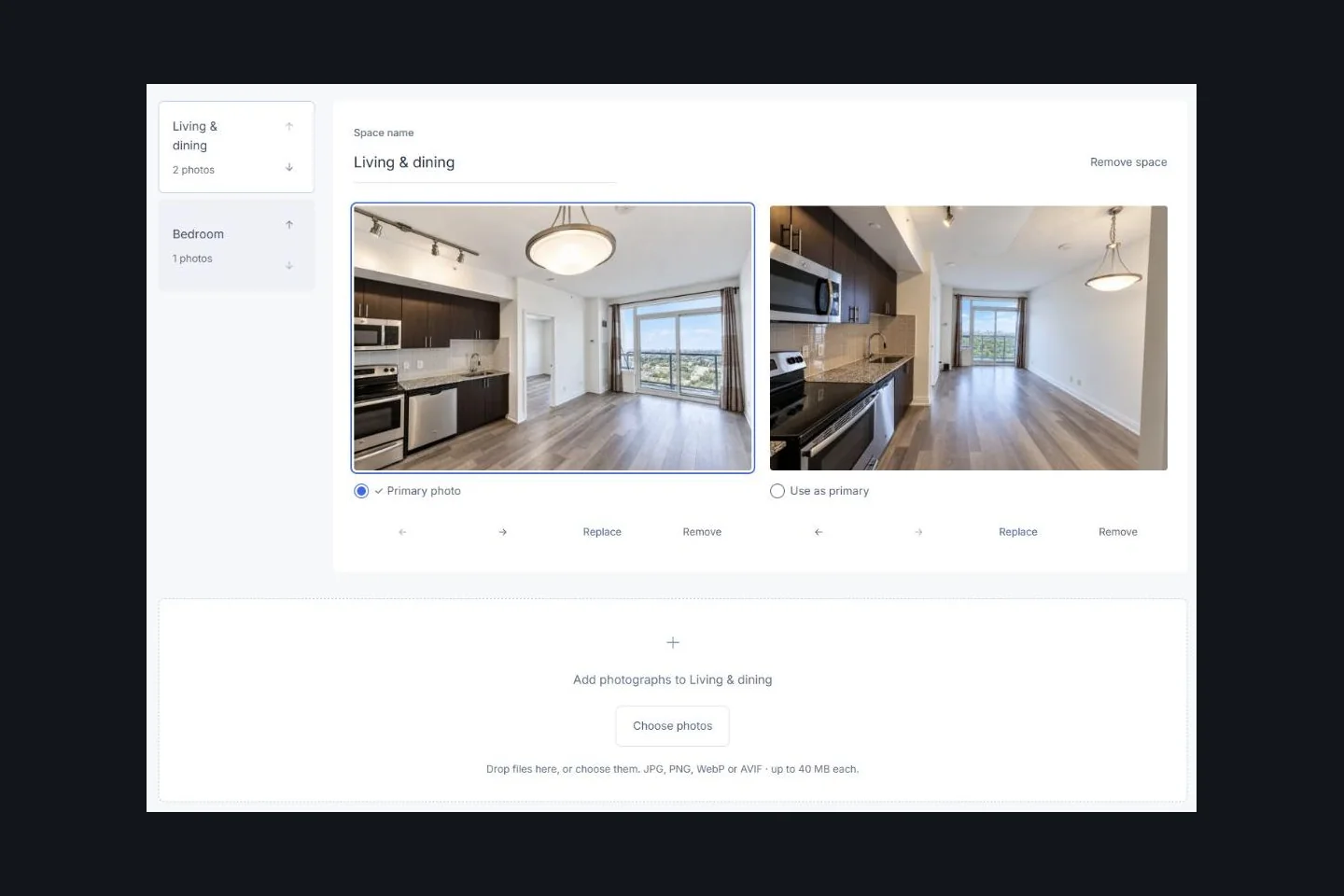
For a condo, the same method applies. If you include shared amenities, give them an explicit name such as “Shared amenities” and use only approved imagery. The presentation should make the difference between the suite and shared areas clear.
Step 3: Add only confirmed property details.
Enter facts from your approved property material. Leave an unknown field blank instead of estimating a dimension, price or location. Check that descriptions and room labels agree with the photographs.
The builder separates private owner information from public property content. Keep owner contact details and internal notes in the private fields intended for them. Do not paste that information into the public description, room names or image captions.
If you add the agent’s public contact details, check the destination carefully. A correct label is not enough if the telephone number, email address or website link points somewhere else.
Step 4: Add optional floor plans or 360° views.
A floor plan can show how spaces relate. Upload the versions you already have: an original image, original PDF, 2D presentation plan or 3D concept image. Arcvist keeps these as separate supplied assets; it does not generate a plan or verify its measurements.
Use clear labels for a concept image so buyers do not mistake it for a measured drawing. Where you add a room association to a plan, open it in the preview and check that it reaches the intended gallery.
For a 360° view, upload a genuine panorama, give it a useful name and associate it with the right space. The viewer lets a visitor look around the capture; connected scenes can link separate captures. Choose a sensible starting view and test each connection.
A panorama viewer is different from a navigable 3D building model. This workflow does not establish headset VR compatibility. If you have only ordinary photographs, use the room galleries and leave the tour out.
Step 5: Review the buyer’s experience.
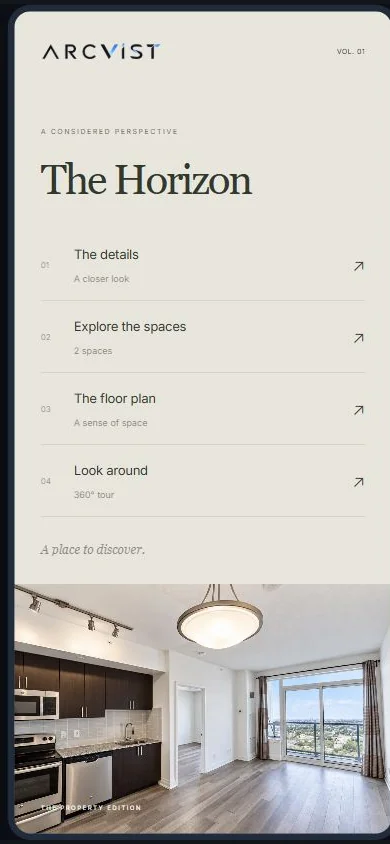
Open Preview and begin at the selected main menu. Then test the mobile view. Read the presentation as a first-time visitor, starting with the title and the available menu choices.
- Check that room names are clear and each gallery contains the intended space.
- Inspect image order, sharpness and the opening photograph’s crop.
- Read the title and description at phone width without zooming.
- Open any floor-plan association or panorama connection you added.
- Confirm public contact destinations and remove private information.
- Wait for saving and file processing to finish.
For a working reference, open the illustrative presentation on our Toronto page. It uses sample material and does not represent an active property listing.
Example: preparing a house presentation for a Toronto agent.
This is an illustrative preparation exercise, not a live listing or customer case study. Suppose you have an exterior photograph, two living-room views, a kitchen photograph, photographs of two bedrooms and one garden view.
Create Exterior, Living room, Kitchen, Primary bedroom, Bedroom 2 and Garden. Put both living-room angles in Living room, with the wider view first. Keep the two bedrooms separate so the menu describes the property accurately.
If the supplied floor plan has been approved for presentation, add it and check its labels. If no plan or genuine panorama is available, leave those sections out. Add only confirmed property facts and the agent contact details intended for public use.
Preview the menu and each gallery on a phone, publish, then reopen the copied link. This process also works for a condo; substitute the actual spaces and clearly identified amenities. Our Toronto real estate agent page shows both scenarios.
Common mistakes to catch before sharing.
- Mixing different rooms. A bedroom gallery should not alternate between two bedrooms without making the change clear.
- Uploading visibly blurry images. Inspect the original at a useful size; enlarging a small file does not restore detail.
- Entering unverified facts. A blank field is more accurate than an estimate presented as confirmed information.
- Skipping the mobile preview. Long titles, awkward crops and unclear labels are easier to spot at phone width.
- Reading contact clicks as sales. Opening a contact action shows an interaction. It does not prove that a message was sent, a viewing was booked or a sale was completed.
Questions before you start.
Can I begin with only a few photographs?
Yes. Add the available photos to clearly named spaces and return to expand the presentation. There is no required room list. Review the incomplete version before deciding who should receive its link.
Can I use different names for the rooms?
Yes. Use the suggested spaces as a starting point or add a custom space. Name rooms according to the supplied property material so different galleries remain easy to distinguish.
Will an ordinary photo work as a 360° tour?
Use ordinary photographs in galleries. A useful look-around view needs a genuine panorama with suitable coverage; uploading a normal photograph does not capture the missing angles.
Do I need to send a new link after editing?
An active presentation keeps its link when saved edits update the shared version. Reopen the existing link after saving to verify the change, especially when adding or replacing media.
Explore the single property website builder or compare an interactive presentation with a PDF brochure.
Before you upload, our practical media preparation checklist helps you check photos, separate rooms and review supplied plans.
Start with your property photos.
Choose a design, add the content you have and review it at your own pace.
Create Your Property Presentation