
Real Estate Listing Media Checklist for Toronto Agents
Before you share a listing, organise the photographs and facts so someone can understand the property without guessing which room they are viewing. Use this checklist while preparing your files, then check the finished presentation on a phone.
What materials should an agent prepare?
A useful presentation starts with the material you can accurately show. Clear room names and consistent grouping help prospective buyers explore the property and return to a space without confusing one bedroom with another. This supports clearer communication; it is not a promise of faster sales.
- Property photographsCollect approved originals in one folder. Keep an untouched copy and confirm you have permission to use every image.
- Verified property informationPrepare the facts you intend to display, such as property type, room counts and dimensions. Confirm them against an appropriate source; leave uncertain facts out.
- Room and space namesMake a short list that matches the actual property, including distinct bedrooms, outdoor areas and any custom spaces.
- Optional floor plansLocate original plans and any independently prepared 2D presentation or 3D concept files. Confirm the labels, version and permission to share.
- Optional genuine panoramasUse actual equirectangular 360° captures. A normal wide-angle image is not a panorama.
- Approved agent contact informationCheck the public name, phone number, email and destination links you want recipients to use.
- Optional supplementary materialReview supplied descriptions or supporting documents for relevance, accuracy, rights and private information before making them available.
This is a preparation checklist, not a platform requirement. Every property field and media upload in Arcvist remains optional. You can begin with the content you have and add more later. Do not fill a gap with an invented fact or a substitute photograph of a different property.
A practical listing photo checklist.
Review the original files at a useful size before uploading. An image that looks acceptable as a thumbnail can still be blurred when someone opens it. Select photographs that explain the property rather than padding the gallery with duplicates.
- Sharpness: check fine edges and details; remove accidental camera movement and missed focus.
- Lighting and exposure: aim for a consistent series, with readable interior detail and reasonable window exposure. Avoid a bright image followed by an unnecessarily dark view of the same room.
- Vertical lines: check door frames and walls. Correct camera tilt carefully without stretching the room into misleading proportions.
- Natural colour: keep surfaces believable and white balance reasonably consistent between viewpoints.
- Orientation: rotate the file correctly, then check the actual uploaded result.
- Honest editing: do not remove a permanent feature, conceal a defect or change a view in a way that misrepresents the property. Review any altered or virtually staged image under your brokerage’s applicable requirements.
- Meaningful viewpoints: include a new angle when it adds information; remove near-duplicates and accidental shots.
Check the spaces that actually exist.
- Exterior: Show the approach and relevant sides of the building. Keep the camera level and avoid presenting a neighbouring property as part of the listing.
- Living room: Choose a clear overview and a second viewpoint only when it explains the room or its connection to another space.
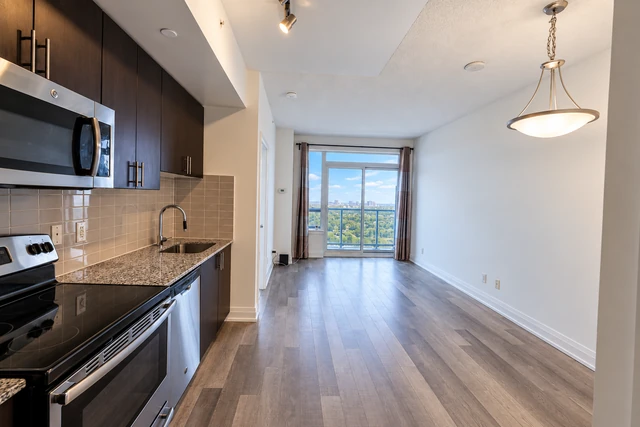
- Kitchen: Show the working layout and relevant finishes without repeating nearly identical angles.
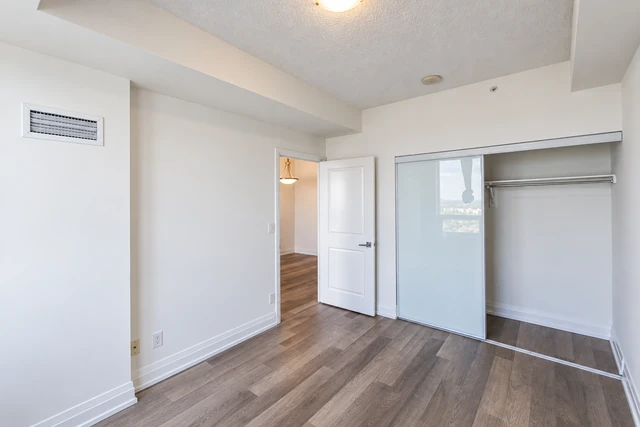
- Bedrooms: Keep each bedroom identifiable. Use a consistent name across the photo folder, gallery and supplied plan.
- Bathrooms: Check mirrors for reflections of people or private belongings; keep colours and proportions believable.
- Balcony or garden: Include the usable area and an accurate view, when present. Do not imply a shared outdoor space is private.
- Garage and additional spaces: Include these only where they exist and matter to the presentation. Label storage, basement and utility spaces plainly.
Not every property has all these spaces. A compact condo and a detached house need different selections. Work from the actual property rather than a fixed photo count.
Organise photographs by room.
For a house, make groups such as Exterior, Entrance, Living room, Kitchen, Primary bedroom and Bedroom 2. Put several views of one room in that room’s group. Keep Bedroom 1 and Bedroom 2 distinct even when their finishes look similar.
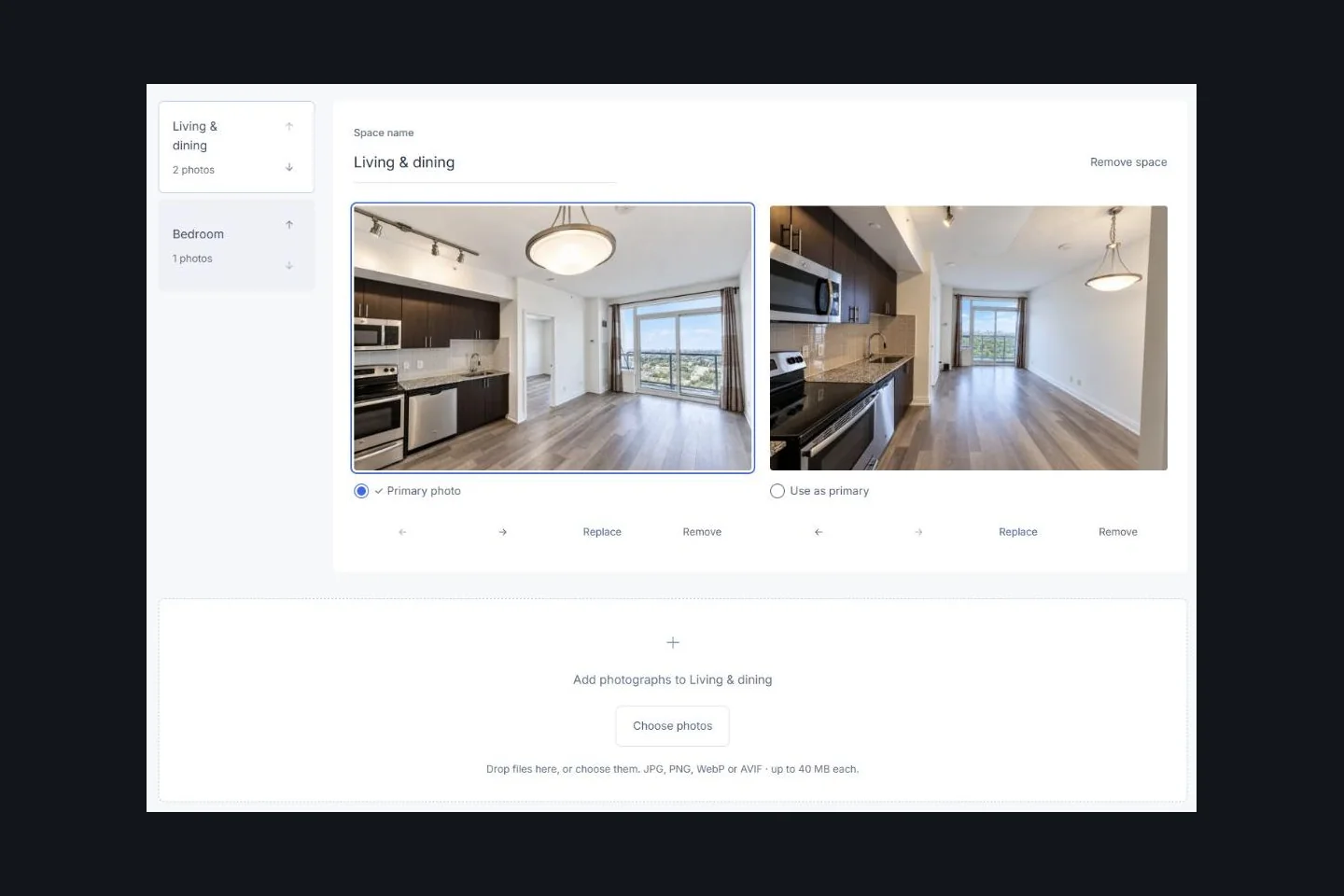
Start each gallery with a view that establishes the room. Follow with another useful angle, then details if they add context. If the kitchen and living area form one open space, use a clear combined name such as Living & dining, or separate groups when that better reflects how you want someone to explore.
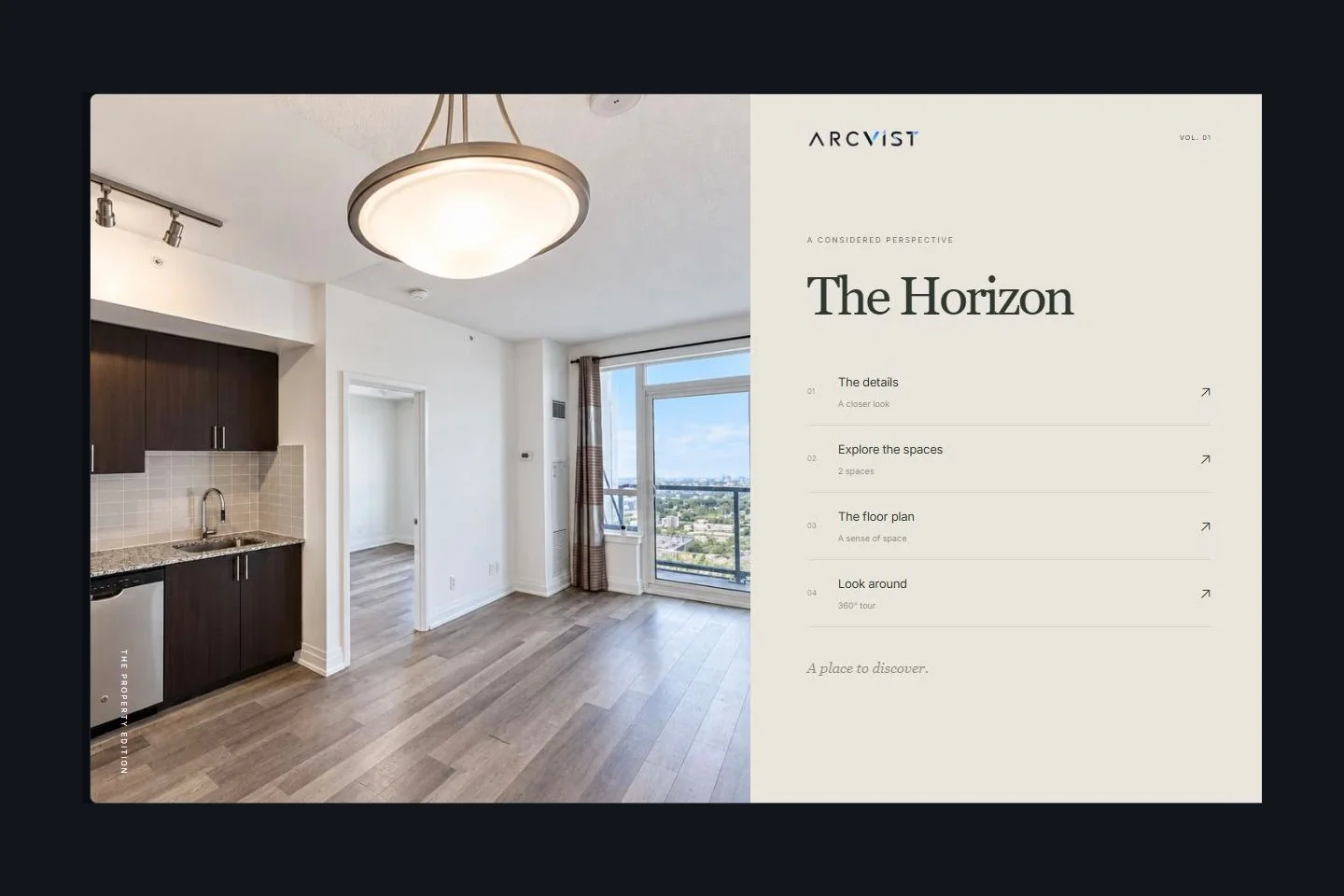
Arcvist’s room-based upload interface lets you name spaces, add photographs to each space and adjust their order. Add a custom space for a study, workshop or other area when the standard names do not fit. Check the selected primary photograph as well as the order inside each room.
What about floor plans?
A supplied plan can explain how rooms connect when photographs alone leave the layout unclear. Check its labels and legibility at phone width. Confirm that it matches the property and identify any limitations in the source material.
- Original plan: the independently supplied source document or image. Confirm its origin and whether dimensions can be relied upon.
- 2D presentation plan: a separately prepared layout designed for easier viewing. It should not silently change the room arrangement or suggest unverified measurements.
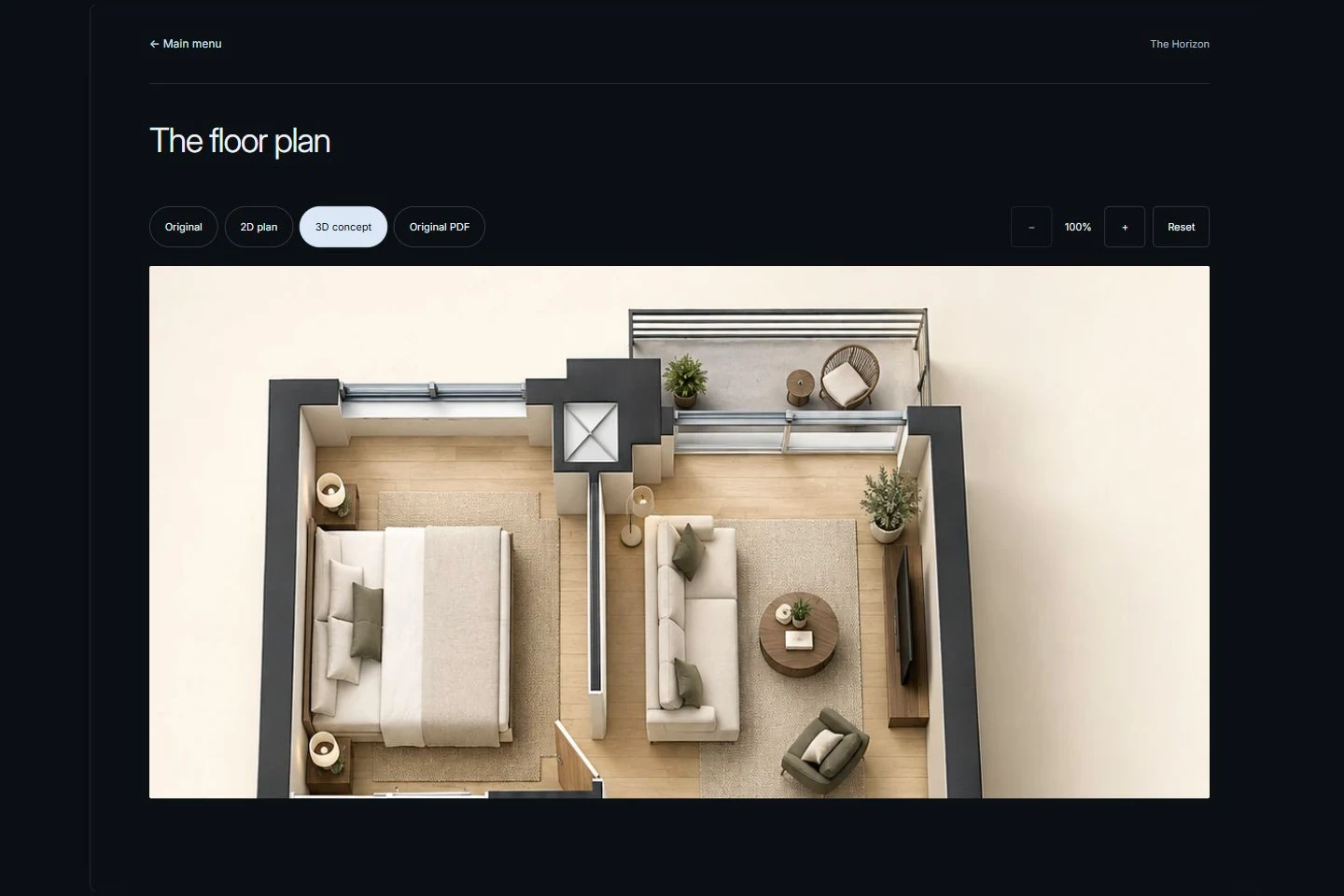
- 3D concept plan: a supplied visualisation that can help illustrate layout or furnishing. Label it as a concept; it is not proof of the property’s exact existing condition.
These are optional, independent uploads in Arcvist’s Final details step. Arcvist displays the plan files you supply; it does not automatically generate floor plans or furnish a property for you. Room links can connect a supported plan view to a gallery when you configure them.
Should agents use 360° photos?
A genuine 360° panorama captures the surrounding scene so a viewer can look around from a fixed position. An equirectangular panorama stores that spherical view as a flat, usually 2:1 image; it looks stretched before a compatible viewer maps it around the viewpoint.
An ordinary photograph shows one framed view. Making it wider or uploading it to a panorama slot does not create the missing surroundings. Review a genuine capture for stitching seams, exposure changes and private reflections before sharing it.
A panorama may help someone understand a room’s connections or look around a space at their own pace. Leave it out when you do not have a suitable capture. Arcvist’s optional panorama viewer is not a complete 3D model, and a verified headset VR system is not a promised feature.
Illustrative example: preparing a Toronto condo.
This is an organising example, not a real listing or client result. Suppose the approved files cover the main living area, kitchen, a bedroom, bathroom and balcony. Create a matching space for each; add Bedroom 2 only if it exists and you have relevant photographs.
Keep the balcony photographs separate from building amenities. Include an amenity image only when you have permission and can explain that the facility is shared. Add a supplied floor plan if available. If the only useful material is room photography, publish that without inventing a plan or panorama.
For a broader preparation workflow, see property presentations for Toronto agents. For unit versus building information, actual views and amenity descriptions, follow the condo presentation guide. The same organisational approach works for Canadian real estate professionals outside Toronto.
Illustrative example: preparing a detached house.
Begin with Exterior and Entrance, then arrange the living spaces, kitchen and each bedroom. Add a garden, garage or basement only where present. A separate Study group is more useful than hiding study photographs inside a generic “Other” gallery.
Review how the photographs move from the approach into the home. Keep related angles together, and use clear names to distinguish floors or similarly shaped bedrooms. A supplied plan can provide overall context; optional panoramas can show selected spaces. Neither needs to cover every room, and neither is required to create the presentation.
Create the presentation in Arcvist.
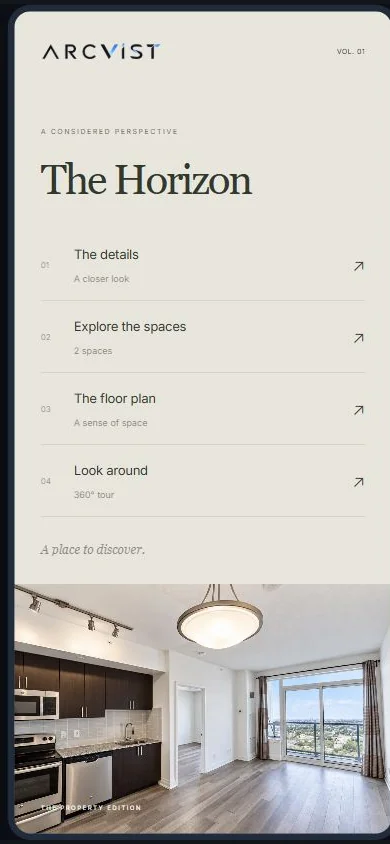
- Choose a presentation design. Open the interactive presentation templates and try the menu on desktop and mobile.
- Add available property details. Include verified facts you intend to share; every field remains optional.
- Upload photographs into spaces. Name each room, group its images and check their order.
- Add optional 360° media. Use genuine panoramas and associate them with the appropriate spaces.
- Add optional final details and plans. Check public contact information and upload independently supplied plan views if available.
- Preview and publish. Review the mobile and desktop experience, then check the actual published link.
The published presentation opens directly at your selected template’s main menu. Available sections reflect your content. For detailed instructions, follow our guide to building a property presentation from photos; for the sharing format, explore single property websites.
Final pre-publication checklist.
Open the actual preview and work through these checks before distributing the link. Recheck after replacing media or changing public details.
- Each photograph is assigned to the correct space; separate bedrooms remain distinct.
- The order within each gallery provides a clear overview before closer details.
- Photographs are sharp, correctly oriented and free of misleading edits.
- Displayed property facts and supplied plan labels have been checked.
- Any concept plan is clearly distinguished from a measured or original plan.
- Optional panoramas load, look around correctly and belong to the named space.
- Public contact links reach the approved person and destination.
- Private owner details, paperwork, access codes and identifying belongings are excluded.
- The presentation is readable and usable on mobile as well as desktop.
- The published link opens at the selected design’s main menu, with only the sections supported by your content.
A shareable link can be forwarded. Review its publication and discovery settings deliberately; do not use private owner information as presentation content.
Common questions.
How many listing photos should I use?
Use enough distinct, clear views to explain the spaces you want to present. There is no universal count that fits every property. Remove duplicates and check whether each image adds useful information.
Can I create a presentation without a floor plan?
Yes. Floor plans and every other property field or upload in Arcvist are optional. Begin with the material you have and add a supplied plan later if it helps.
Are 360-degree photographs required?
No. Ordinary room photographs can stand alone. Add a genuine panorama only when you have a suitable capture and a useful reason to include it.
Can I update a presentation after publishing?
Yes. Saved changes to an active Arcvist presentation appear at its existing publication link. Preview your updates and recheck the shared link, especially after removing or replacing media.
How should I organise photos of multiple bedrooms?
Create a separate named space for each bedroom. Keep multiple views of one bedroom together, and use names consistently across galleries and any supplied floor plan.