
How to Create a Professional Toronto Condo Property Presentation
Similar bedrooms, small balconies and shared amenity photos can make a condo hard for a buyer to follow. Start with the unit’s layout and actual outlook, then show the building facilities separately.
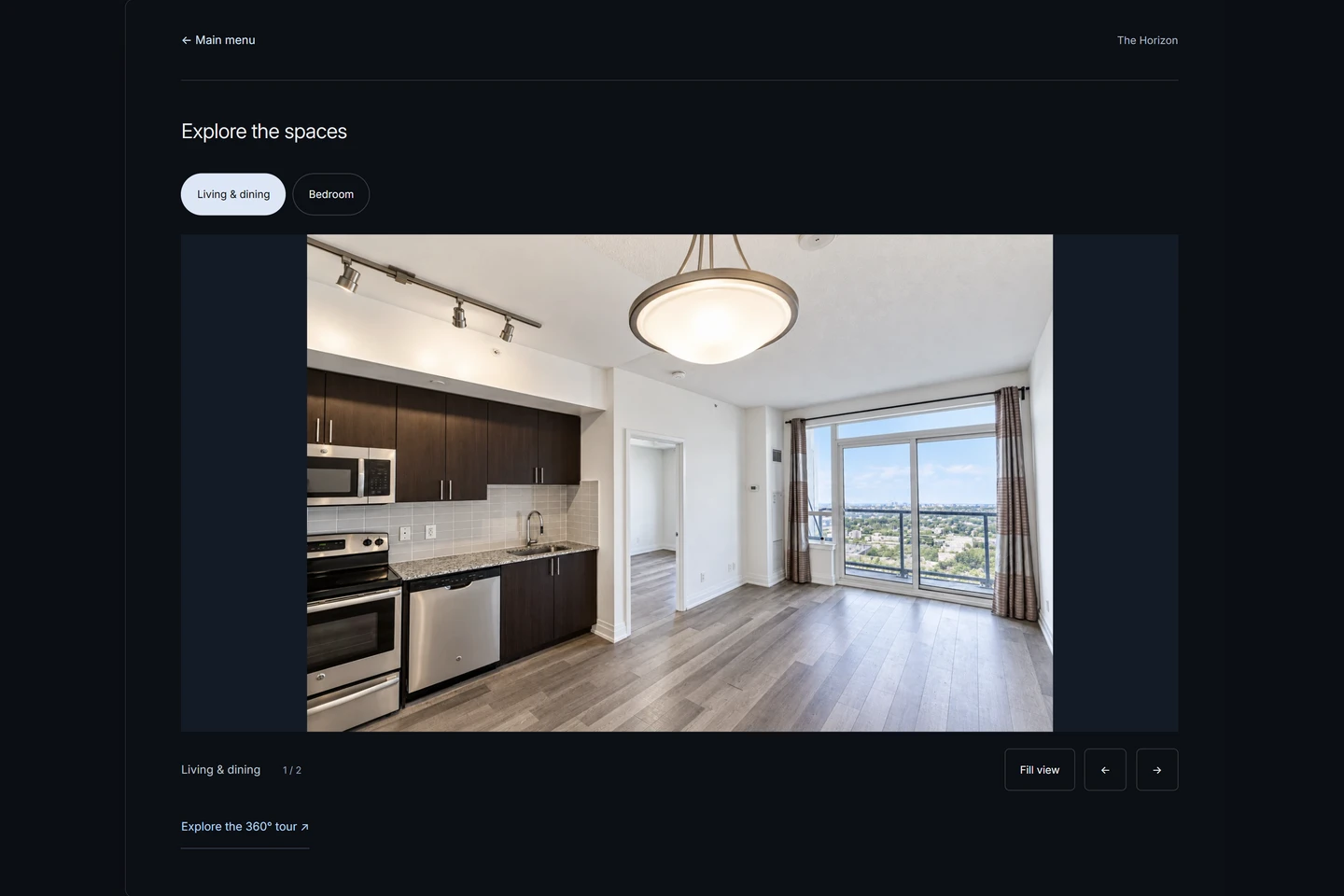
What makes a condo presentation different?
A buyer needs to connect similar-looking rooms to a particular unit. A small balcony, the view through one window and a pool elsewhere in the building can appear in the same image set. Give each an accurate place in the presentation so a viewer can tell what is inside the suite and what is shared.
| Property format | What the presentation needs to clarify |
|---|---|
| Detached house | The route between floors, interior rooms and actual outdoor areas. Identify any separately used space accurately. |
| Townhouse | How rooms connect across levels, the entrance and any shared or private outdoor features. Verify the ownership and use arrangements. |
| Condominium apartment | The unit’s layout, outlook and outdoor space, followed by clearly identified shared building facilities. |
Use agent-supplied, verified information for the floor level, orientation or exposure, dimensions and parking or storage arrangements. A photograph cannot establish ownership or access rights. If a fact is uncertain, leave it out while you confirm it. For multiple levels and private outdoor areas, follow the Toronto house presentation guide.
This is a buyer-facing property showcase. A seller-facing listing presentation usually explains an agent’s services, pricing approach and marketing proposal. Keep those purposes separate when choosing content.
Start with a clear photo structure.
Write down the actual spaces before uploading. The following is a suggested browsing order, not a list of required fields. A unit without a balcony needs no balcony gallery; floor plans and panoramas have their own optional sections.
- Building exterior. Establish which building you are showing with approved photographs.
- Main living area. Show how sitting and dining areas connect in this unit.
- Kitchen. Include a separate gallery when the photographs explain a distinct space.
- Primary bedroom. Keep every viewpoint of this bedroom together.
- Additional bedrooms. Create a named space for each actual bedroom, such as Bedroom 2.
- Bathrooms. Separate distinct bathrooms when you have photographs for each.
- Balcony or terrace. Show the unit’s actual outdoor space, if present.
- Building amenities. Clearly label shared facilities and check permission and access.
- Floor plans. Add independently supplied plans in the optional plan section.
- 360° views. Associate genuine panoramas with the spaces they depict, if available.
For a two-bedroom unit, create Primary bedroom and Bedroom 2 as distinct spaces. Put two photographs of the primary bedroom in its own gallery; they do not represent two bedrooms. Add a custom room name for a den or another space when appropriate. Do not rename a den as a bedroom without verified information supporting that description.
Arcvist’s space-based upload step supports named rooms and custom spaces. Keep names consistent with supplied plans. For file preparation and the general photo-quality checks, use the listing media checklist.
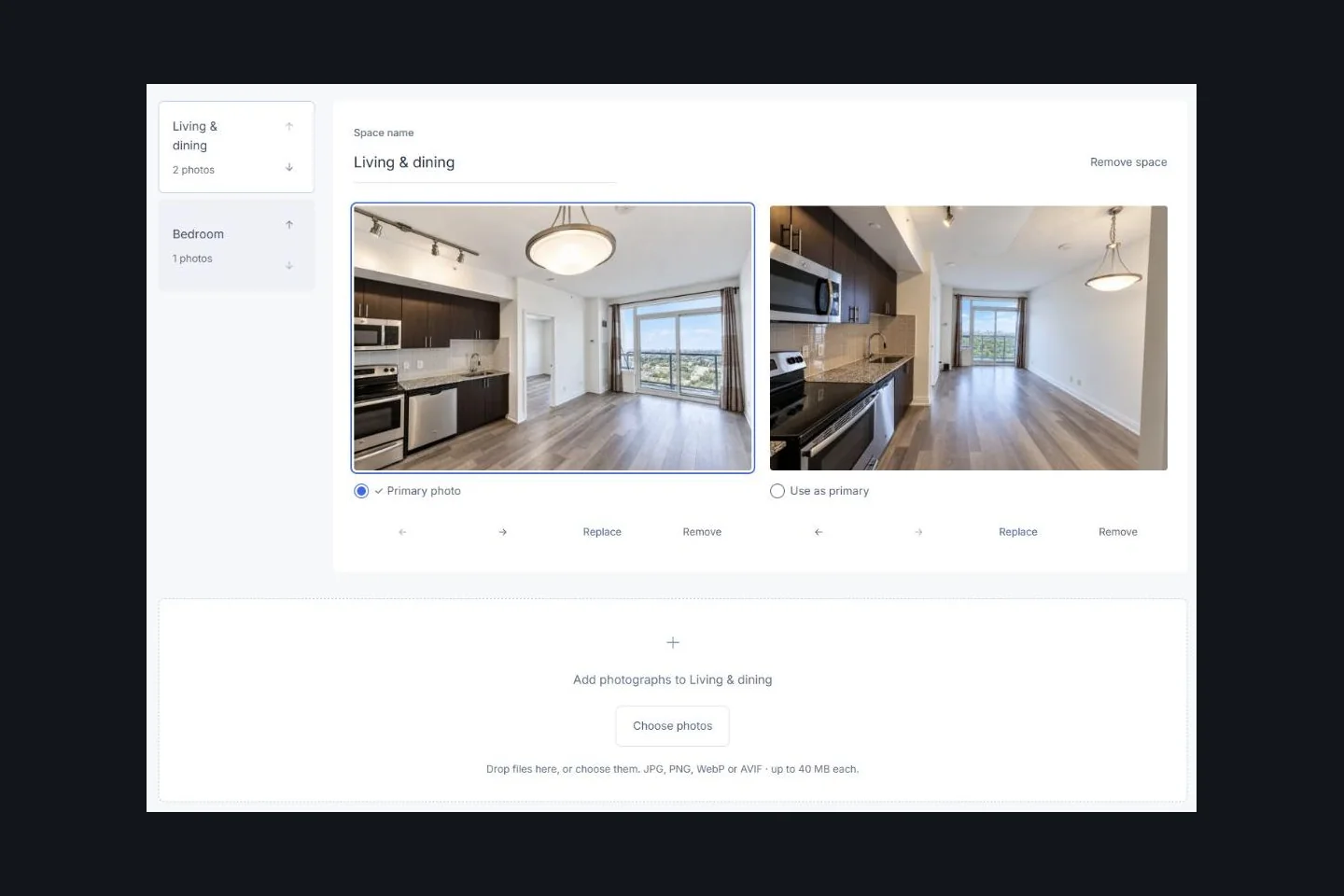
Show small spaces without changing their proportions.
Choose an opening photograph that explains the room’s layout. In an open living area, a viewpoint showing the kitchen entrance or balcony door can clarify the connection better than several isolated detail photographs.
A suitable wide-angle photograph can include more of a compact room, but review the edges for stretched furniture and distorted walls. Keep verticals straight and room proportions believable. Follow the overview with another angle only when it adds useful information.
Keep exposure and colour reasonably consistent across connected rooms. Showing the same doorway in two viewpoints can help a buyer follow the layout. Avoid using a tight crop to hide a fixed feature that matters to understanding the space.
If imagery is virtually staged or otherwise edited, identify the change clearly and preserve an accurate representation of the property. RECO’s AI guidance makes agents responsible for verifying AI-assisted content and truthful advertising. A staging label does not make an inaccurate image acceptable.
Show the outlook from this unit.
Pair an interior view of the window or balcony door with a photograph of the actual outlook. This helps someone understand where the view belongs. Label balcony photographs separately from a shared rooftop terrace.
Describe orientation and daylight only from confirmed information. A photograph taken in the afternoon shows one set of conditions; it does not demonstrate all-day sunlight. If a photograph shows only one direction, avoid implying that every room has that exposure.
Keep railings, neighbouring buildings and permanent obstructions visible. Replacing the outlook with a different skyline would misrepresent the unit. General Toronto neighbourhood imagery, if used, needs a clear contextual label and must never stand in for the unit’s actual view.
For a small balcony, show the usable area and its connection to the living space. Let the photographs explain it without inventing measurements or suggesting that shared outdoor areas are private.
Keep building amenities separate from unit spaces.
A fitness room, pool, party room, shared lounge or rooftop space belongs in a clearly named Building amenities group. Include a facility only when it exists, the agent is authorized to advertise it and the description has been checked.
Use specific labels such as Shared fitness room or Building rooftop terrace. A photograph establishes neither a purchaser’s right to use a facility nor that access is included without conditions. Confirm applicable availability or restrictions before describing them.
Parking and storage need the same care. Verify what the agent intends to describe and keep that information distinct from a general photograph of the garage or storage area. Do not expose access controls, security codes or identifying information belonging to other residents.
Check the permission for amenity photography, including images supplied by a building manager or another photographer. Keep a record of the permitted use and review the image for residents and private belongings before sharing it.
Use floor plans to connect the rooms.
A readable supplied plan can show how the entrance, bedrooms and balcony relate to one another. Check that labels match your room galleries and that the version actually applies to this unit. Verify displayed dimensions rather than inferring them from a marketing illustration.
- Original plan: the independently supplied source image or document, kept distinguishable from later presentation material.
- 2D presentation plan: a separately prepared, easier-to-read layout. Review labels and geometry against the source.
- 3D concept plan: an optional supplied visualisation of layout or furnishing. Clearly identify it as a concept rather than evidence of the unit’s exact existing condition.
Arcvist displays the files you supply. It does not automatically turn a PDF into a furnished 3D floor plan. Plans remain optional. In the supported 2D sample, a configured room link opens the matching Living & dining gallery; links require an existing photographed space.
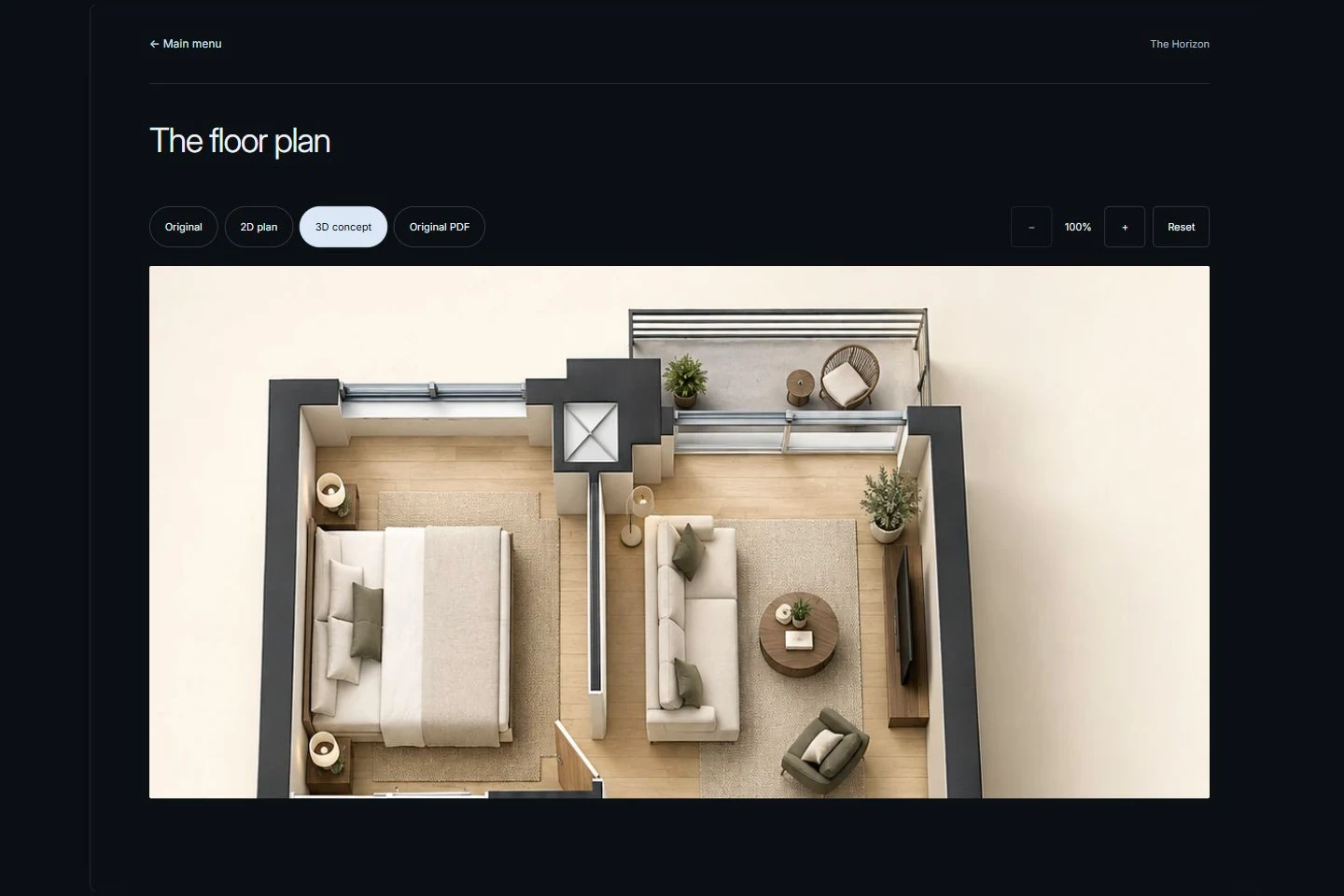
Try the working plan and gallery demonstration before choosing which files help explain your own unit.
When does a genuine 360° view help?
A panorama can help someone look around a compact living area and understand the position of nearby doors or a kitchen opening. Capture and review it from a useful position. Check stitching, exposure and reflections before uploading.
A standard photograph shows one frame. An equirectangular panorama stores a surrounding spherical view as a flat image for a compatible viewer. A 3D model represents spatial geometry; a headset VR experience needs its own supported system. These are different formats.
Arcvist supports optional supplied panoramas and configured scene links. It does not reconstruct missing surroundings from ordinary photos or promise a verified headset VR experience. Leave the section out if you do not have suitable genuine captures.
Open the working sample’s 360° view to try scene navigation. Its approved illustrative material demonstrates the viewer, not a verified capture of a live Toronto condo.
Create the condo presentation in Arcvist.
- Choose a presentation template. Try the ten working presentation designs and check the selected menu on a phone.
- Optionally add basic condo information. Use verified facts and leave uncertain or unavailable details out.
- Add photographs by space. Name the rooms and keep each bedroom’s views together. Separate amenities from unit galleries.
- Optionally add panoramic photographs. Associate genuine captures with the correct spaces and review any scene links.
- Optionally add plans and contact information. Upload supplied plan files and check public agent details and destinations.
- Preview and publish. Review the actual mobile and desktop experience, then open the published link.
No property field or upload is mandatory in Arcvist. You can skip optional content steps and return to edit later. The published presentation begins at the selected template’s main menu; its available sections follow the content you supplied.
The photo-to-presentation tutorial explains the general builder steps. For this condo workflow, use the interactive apartment demonstration to explore the menu, rooms and supplied plan.
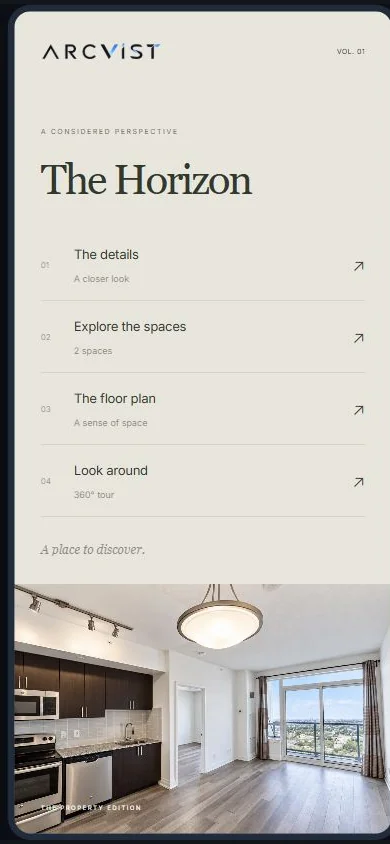
Illustrative example: a two-bedroom Toronto condo.
This is a planning scenario, not a real listing or a customer case study. Suppose an agent has approved photographs of a living area, kitchen, two separate bedrooms, one bathroom and a balcony, plus a supplied unit plan. There is no need to invent an address, price or missing media.
Create Living & dining, Kitchen, Primary bedroom, Bedroom 2, Bathroom and Balcony as the available room groups. Put both primary-bedroom angles in Primary bedroom. Start Living & dining with the photograph that shows the connection to the balcony, then follow with a useful second viewpoint.
If approved shared-lounge imagery and verified access information become available, add a clearly labelled Building amenities space. If they do not, leave it out. Keep the balcony’s actual outlook in its own gallery; a skyline photograph from another location does not belong there.
Place the supplied plan in the optional plan section. Configure a room link only when it connects to the correct gallery. Add a genuine living-room panorama to the optional 360° section if supplied; otherwise the room photographs stand alone.
Preview the chosen main menu and each bedroom on mobile, publish, then copy the presentation link for the intended recipient. A browser link can be forwarded, so review visibility deliberately. See the website and PDF comparison when a recipient also needs a printable version.
Review the presentation before sharing.
- Each photograph belongs to the correct unit, bedroom or clearly labelled shared facility.
- Displayed dimensions, floor level, exposure and other unit facts have been verified.
- Amenity descriptions, parking and storage information reflect confirmed availability and rights of use.
- Photographs and supplied plans are approved for advertising, with relevant permissions recorded.
- The actual outlook is represented accurately; edited or virtually staged images are clearly identified.
- Any supplied concept plan is distinguished from the original or measured plan.
- Agent contact links work and required agent/brokerage identification has been reviewed.
- Private owner details, access codes, paperwork and identifying reflections are excluded.
- The mobile presentation is readable, room names are distinct and images load correctly.
- The shared link opens at the selected main menu and its visibility settings match the agent’s intention.
Check the advertisement as well as the interface.
RECO’s online advertising bulletin covers current, accurate information, prominent brokerage identification and permissions for others’ imagery and identifying information. Review the full advertisement and the relevant consent terms with your brokerage before sharing.
For AI-assisted work, RECO’s official AI guidance stresses independent verification and protecting confidential client information. Keep private client or transaction material out of public AI tools.
These are educational preparation checks, not legal advice. Optional Arcvist form fields do not remove an agent’s advertising obligations. Arcvist does not automatically verify rights, permissions, property facts or regulatory compliance.
Common questions.
What photos should be included in a condo presentation?
Use approved photographs that explain the actual unit’s layout and rooms. Include the balcony or outlook where available, and label any shared building imagery separately. Keep distinct bedrooms separate and omit spaces that do not exist.
Should agents include floor plans?
A supplied, readable plan can help connect similar rooms and show the unit layout. Verify the version, labels and any displayed dimensions. All plan uploads remain optional in Arcvist.
Are 360° photographs required?
No. Standard room photographs can form the presentation. Add a genuine panorama only when one is supplied and helps explain a space; it is not interchangeable with a 3D model.
Can an existing condo presentation be updated?
Yes. Saved changes to an active Arcvist presentation update the shared version at its existing link. Wait for saving and media processing to finish, then reopen the actual link to review the result.
Can multiple bedrooms be shown separately?
Yes. Create a named space for each actual bedroom and put its photographs together. Several views of one bedroom belong in the same gallery rather than becoming separate rooms.
Can buyers open the presentation without installing software?
Yes. Recipients open the published link in a browser and begin at the selected main menu. They do not need an Arcvist account or an app installation to view it. Review what you publish because a recipient can forward the link.