
How to Create a House Listing Presentation in Toronto
A house can be difficult to understand from a long sequence of photographs. Give buyers a route from the entrance through the rooms, across the floors and out to the garden.
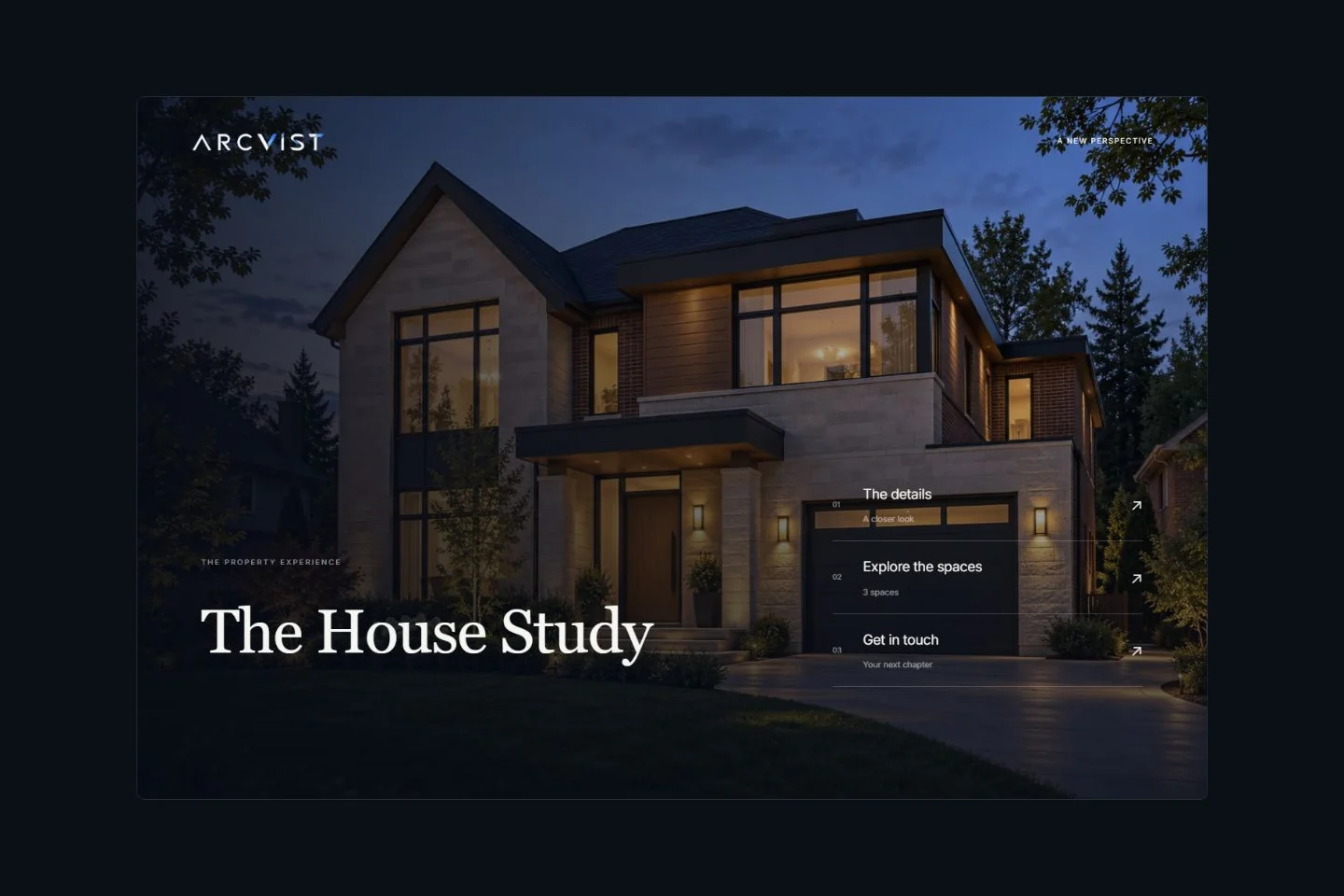
This guide is about presenting a house to prospective buyers online. It is not a seller appointment pitch, comparative market analysis or proposal for winning a listing. The goal is a clear property showcase built from verified information and the media you actually have.
A house needs a different browsing order from a condo.
A detached house may have several entrances, multiple levels and outdoor areas. Buyers need to understand how those parts connect. A townhouse may need the same level-by-level explanation, with shared areas and rights of use accurately identified.
A condominium apartment usually needs a clear distinction between the suite and shared building amenities. For that workflow, use the Toronto condo presentation guide. For a house, begin with its own exterior and entrance, then follow the interior before introducing secondary and outdoor spaces. The Toronto agent overview explains the broader presentation workflow.
Choose an order before uploading.
Sort the source files into actual spaces first. A useful starting order is Exterior, Entrance, Living & dining, Kitchen, separate bedrooms and bathrooms, Basement or other secondary rooms, then Garden and outdoor areas. Adjust this to the building; it is a browsing suggestion, not a required checklist of rooms.
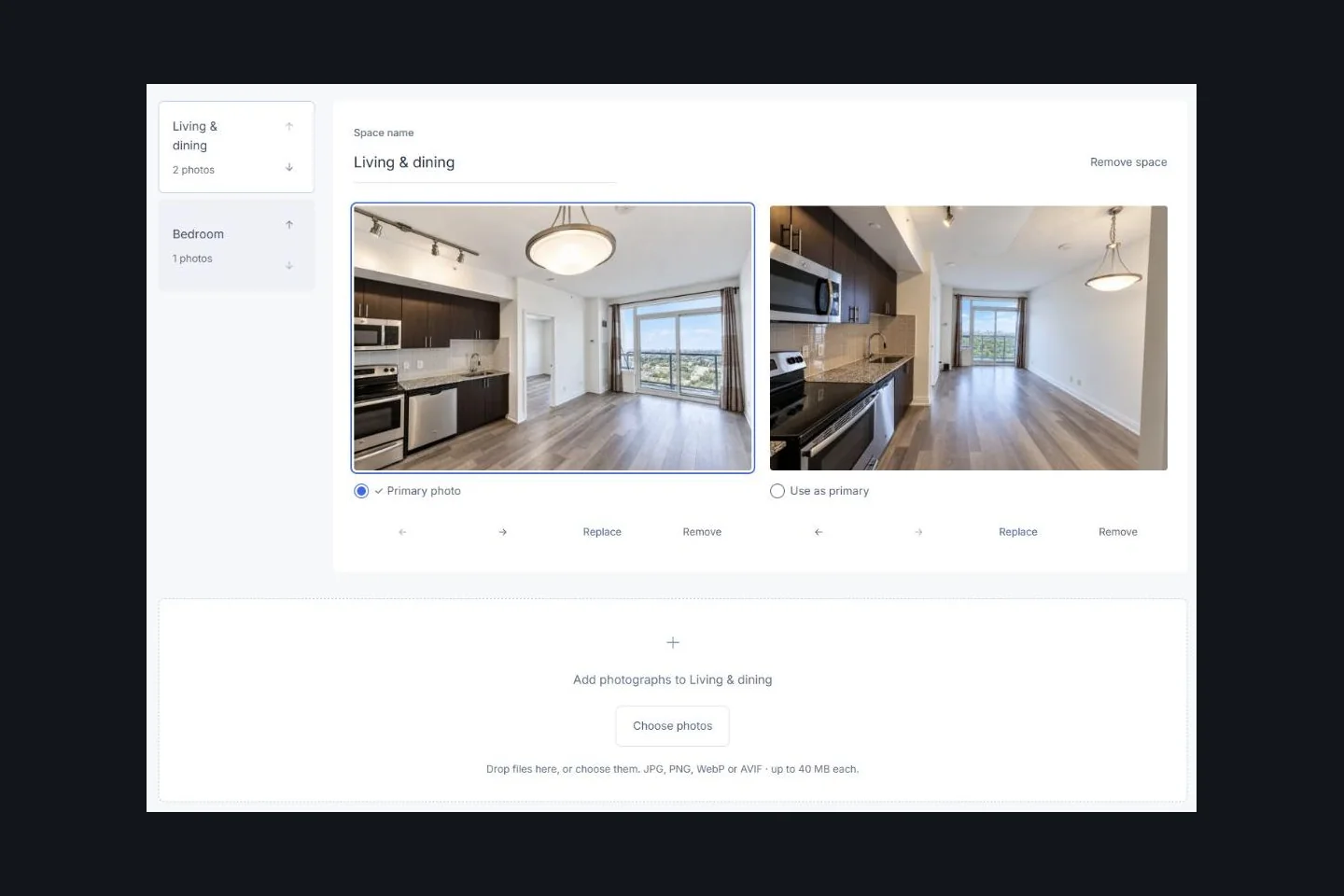
Within each space, open with a photograph that explains the room. Follow with another viewpoint that adds a connection, feature or useful detail. Six near-identical angles of one sofa make the gallery longer without explaining more of the house. Keep several photographs of one bedroom together; they do not represent several bedrooms.
Keep the hero photograph and the first room image deliberate. The hero can establish the house, while each gallery begins with a useful overview. Use the listing media checklist for file preparation, privacy and image-quality checks.
Let the exterior establish the property.
A front elevation can show the entrance, shape of the house and relationship to the driveway. A second angle can clarify depth or a side entrance where relevant. Use approved source files with enough resolution to remain sharp at the intended display size; inspect the originals rather than compressed screenshots. Balance exposure so the entrance is readable without losing bright detail, and keep white balance and colour consistent across exterior views. Keep vertical lines straight and review wide-angle distortion before choosing the opening image.
Use photographs of the actual property. Do not remove permanent neighbouring structures or replace the setting with a more attractive location. A neighbourhood photograph, if useful and permitted, needs its own contextual label. It cannot stand in for the outlook from this house.
Review house numbers, vehicle plates, visible documents and identifying reflections. Keep enough context to explain the entrance without revealing access codes or private owner information. Our illustrated example uses a fictional house precisely because it is a product demonstration, not listing evidence.
Use room names that explain the floor.
Enter floor information manually in the space name when it helps a buyer navigate. For example, use Ground floor · Living & dining, Upper floor · Primary bedroom and Basement · Recreation room. Arcvist does not detect storeys from photographs or automatically build a hierarchy of floors.
| Floor label | Example space names |
|---|---|
| Upper floor | Primary bedroom · Bedroom 2 · Bedroom 3 · Bathroom |
| Ground floor | Entrance · Living & dining · Kitchen |
| Basement | Recreation room · Storage, where applicable |
| Outside | Front exterior · Garden · Deck, where present |
Keep the names short enough to distinguish on a phone. Match them to the supplied plan and use a consistent naming convention throughout. Do not add an empty gallery simply to complete a suggested floor list.
Connect the garden to the house.
Show the doorway or route leading outdoors, then an overview of the actual garden, patio, deck or yard. A further view can explain the relationship between those areas. Detail photographs of planting work best after a buyer can understand the usable space.
Describe boundaries, exclusive use and included structures only from verified information. An image of a fenced area does not establish a legal boundary. Label seasonal photographs clearly when they differ from current conditions, and do not imply that a shared area is private.
Describe basements and secondary spaces carefully.
A recreation room, laundry area, workshop, storage space or garage may help a buyer understand the house. Use the verified purpose and actual condition of each space. Show connections and access where appropriate, rather than relying on an ambiguous photograph of a doorway.
Do not infer a legal bedroom, approved secondary suite, rental status or income potential from a photograph, kitchen fixture or separate entrance. Confirm any such claim through the appropriate records and professional review before advertising it. If the facts are uncertain, omit the claim while checking them.
Keep the original plan and concept material distinct.
A readable, independently supplied plan can connect rooms across levels. Check which floor each file depicts, verify labels and dimensions, and make sure the source actually applies to this house.
- Original plan: the supplied source document or image, kept distinguishable from later presentation material.
- 2D presentation plan: a separately prepared layout whose geometry and labels need checking against the source.
- 3D concept plan: an optional supplied illustration of layout or furnishing, clearly labelled as a concept rather than a survey of existing conditions.
Arcvist displays files you supply. It does not turn room photos or a PDF into a measured or furnished 3D plan. A configured plan link needs to point to the correct existing gallery; it is not an automatic room match.
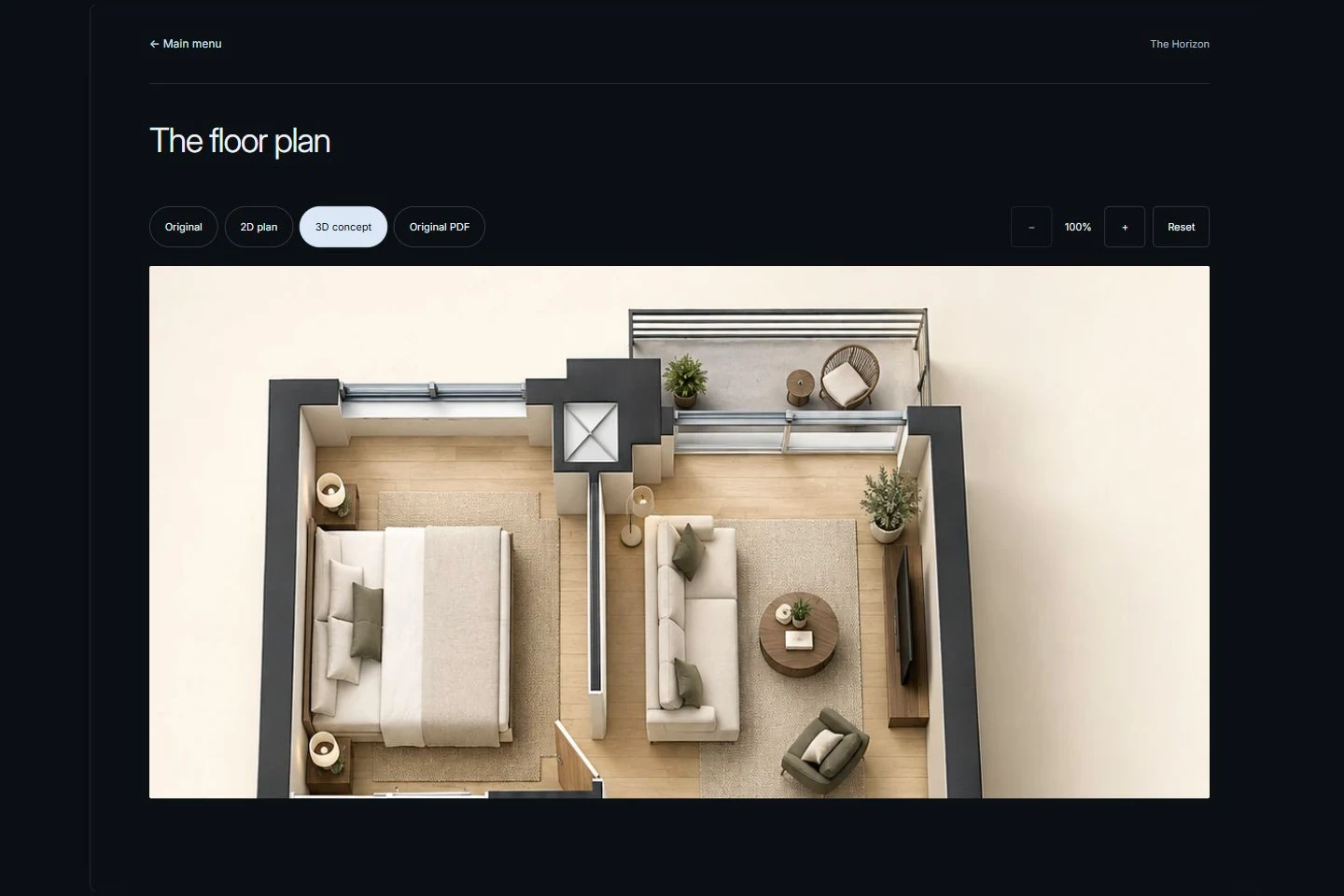
Explore the real viewer in the interactive house example and separate plan reference.
Add a 360° view only when it helps.
A genuine panorama can clarify an open living area or the relationship between doors. Associate it with the space it depicts, check the initial viewpoint and review any configured hotspot destination.
A standard photograph is not a complete panorama. A panorama lets viewers look around one capture point; it is not a navigable 3D model or a headset VR experience. Do not promise missing viewpoints, automatic conversion or automatic whole-house reconstruction. Ordinary room galleries remain useful without any panoramic files.
Build the house presentation in six steps.
- Choose a template. Compare the ten available designs with the photographs you intend to use. Pick the main-menu composition that makes the property easy to enter.
- Add approved property information. Enter only facts and public enquiry details you have checked. Optional form fields do not remove advertising obligations.
- Organise photos by space. Create each actual room, give it a clear name and group its viewpoints together. Enter floor prefixes yourself where useful.
- Add optional media. Upload supplied plans or genuine panoramas if available. Check labels, configured room links and hotspot destinations.
- Preview on desktop and mobile. Start at the main menu, open every room and inspect images, plan readability and contact actions. Remove empty or misleading content before sharing.
- Publish and share the actual link. Wait for saving and media processing, publish when ready, copy the resulting link and reopen it as a recipient would. Review visibility because links can be forwarded.
The photo-to-presentation tutorial covers the general product steps. A single property website gives this house a focused browser experience; the website versus PDF comparison helps when someone also needs a printable document.
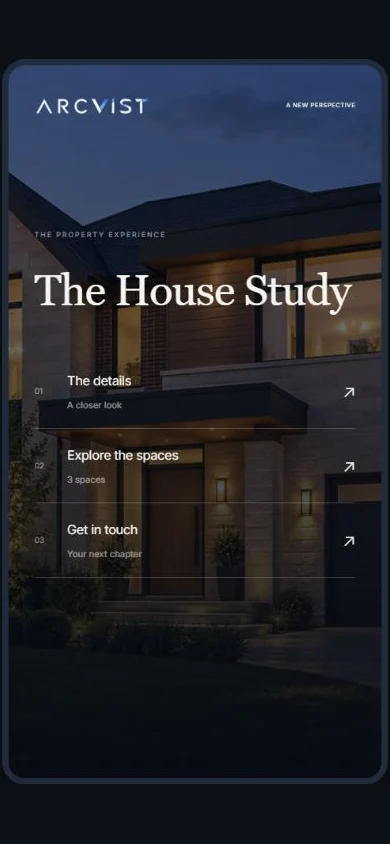
Planning example: a three-bedroom detached house.
This scenario is illustrative, not a real Toronto listing or customer case study. Suppose an agent has approved photographs of the front exterior, living and dining area, kitchen, three bedrooms, bathroom, basement recreation room and garden. A supplied plan is available, but no panorama has been captured.
Begin with Exterior and Ground floor · Living & dining. Add Ground floor · Kitchen, then Upper floor · Primary bedroom, Bedroom 2 and Bedroom 3 as distinct spaces. Keep two angles of Bedroom 2 together. Add the photographed bathroom, Basement · Recreation room and Garden without inventing missing rooms or legal status.
Review the supplied plan against those names and add it to the optional plan section. Leave 360° content out. Check every menu destination on a phone, verify public contact details and reopen the published link after saving. The visual House Study collection demonstrates only available exterior, living and bedroom reference media; it does not pretend to photograph all the rooms in this planning scenario.
Review the advertisement, including AI-assisted content.
RECO announced its AI guidance in its news listing on 22 October 2026. Agents remain responsible for checking AI-assisted facts and copy, protecting confidential client information and representing the property accurately. Do not put confidential client or transaction information into public AI tools.
Identify altered or virtually staged imagery clearly, preserve permanent features and verify the result before advertising it. A label does not excuse a misleading depiction. RECO’s online advertising bulletin also covers current, accurate information, prominent agent and brokerage identification, and permissions for imagery and identifying information.
Review the full advertisement and consent terms with your brokerage. These are educational preparation checks, not legal advice. Arcvist does not verify property facts, permissions, rights of use or regulatory compliance automatically.
Before you share the house.
- Every photograph depicts the correct room or clearly identified contextual material.
- Room names and floor prefixes agree with the supplied plan and verified facts.
- Exterior, garden and any seasonal photographs are current or accurately dated and labelled.
- Basement and secondary-space descriptions use verified facts; photographs do not establish legal status.
- Original, 2D and concept plans are clearly distinguished, readable and approved for use.
- Any panorama is genuine and associated with the room it actually depicts.
- Altered or virtually staged images are identified and do not misrepresent permanent features.
- Agent and brokerage identification, permissions and advertising consent have been reviewed.
- Private owner details, access codes, documents and identifiable reflections are excluded.
- The mobile menu, every room, contact action and final shared link have been checked after saving.
Common questions.
How should a detached house be presented online?
Give buyers a clear route from the exterior and entrance through the main living spaces, separate bedrooms and relevant secondary and outdoor areas. Group viewpoints by actual room, use manual floor labels where helpful and check the shared menu on a phone before sending it.
How do I show a house with multiple floors?
Create separate named spaces and enter a floor prefix manually, such as Ground floor · Kitchen or Upper floor · Bedroom 2. Keep the labels consistent with any supplied plan. Arcvist does not automatically detect floors or construct a floor hierarchy.
Do I need a floor plan?
No. Room photographs can stand alone. If you have an approved plan, check its version and labels before adding it. Arcvist displays supplied original, 2D and concept files; it does not generate a measured plan from photographs.
Is a 360° tour required?
No. It is optional and needs a genuine panorama. Standard photographs are not complete look-around images, a panorama is not a 3D model, and the browser viewer should not be described as a headset VR experience.
Can I update a presentation after sharing it?
Yes. Saved changes to an active presentation update its existing link. Wait for saving and media processing to finish, then reopen the shared link on a phone and desktop to check the buyer’s view.
Can buyers view the link without registering?
Yes. Buyers can open an active published presentation link in a browser without creating an Arcvist account or installing an app. This applies to the shared published link, not a private draft or workspace. Review its content and visibility before sharing because a recipient can forward the link.