
How to Share Property Photos, Floor Plans & 360° Tours in One Link
The photographs are in a folder, the floor plan is a PDF and the tour has another address. Bring the approved material into one presentation so a buyer can choose where to look next.
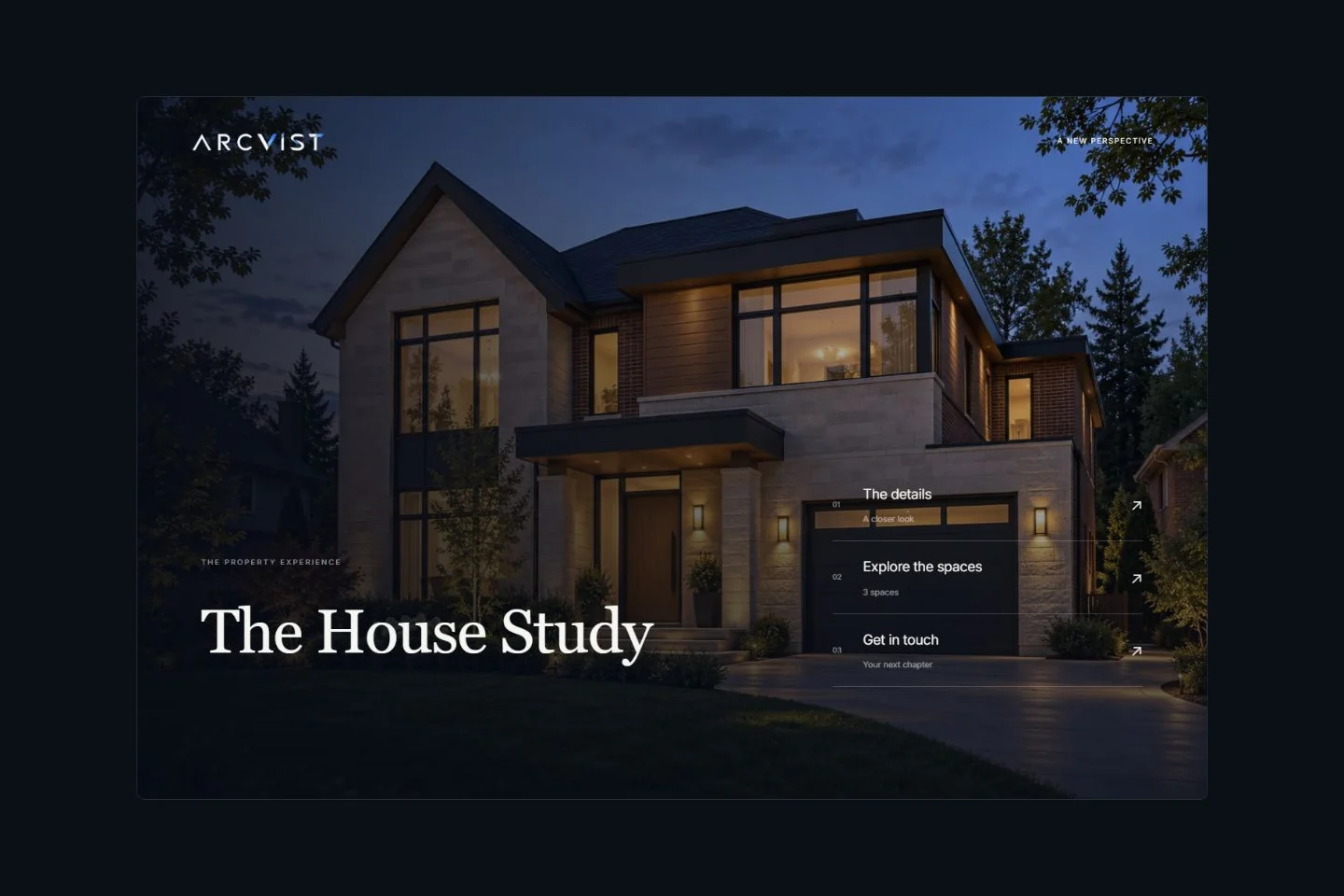
This guide covers sharing a property with prospective buyers. It focuses on the public experience after you organise the media, rather than a seller-facing pitch for winning a listing. A single property presentation website gives the available material a common starting point. A PDF can still be useful when a recipient needs a printable summary; see the website and PDF brochure comparison.
What can a property presentation link contain?
Use the material that explains this property: photographs grouped into room galleries, checked specifications, public agent contact details, supplied floor plans and optional spherical panoramas. The selected template’s main menu provides routes into the available sections.
Every input is optional. You can publish a minimal presentation, although a buyer will have more to explore when you add relevant content. Arcvist does not fill missing rooms, infer measurements or generate architectural information. Review which sections actually appear in the preview.
Give each room a place before sharing.
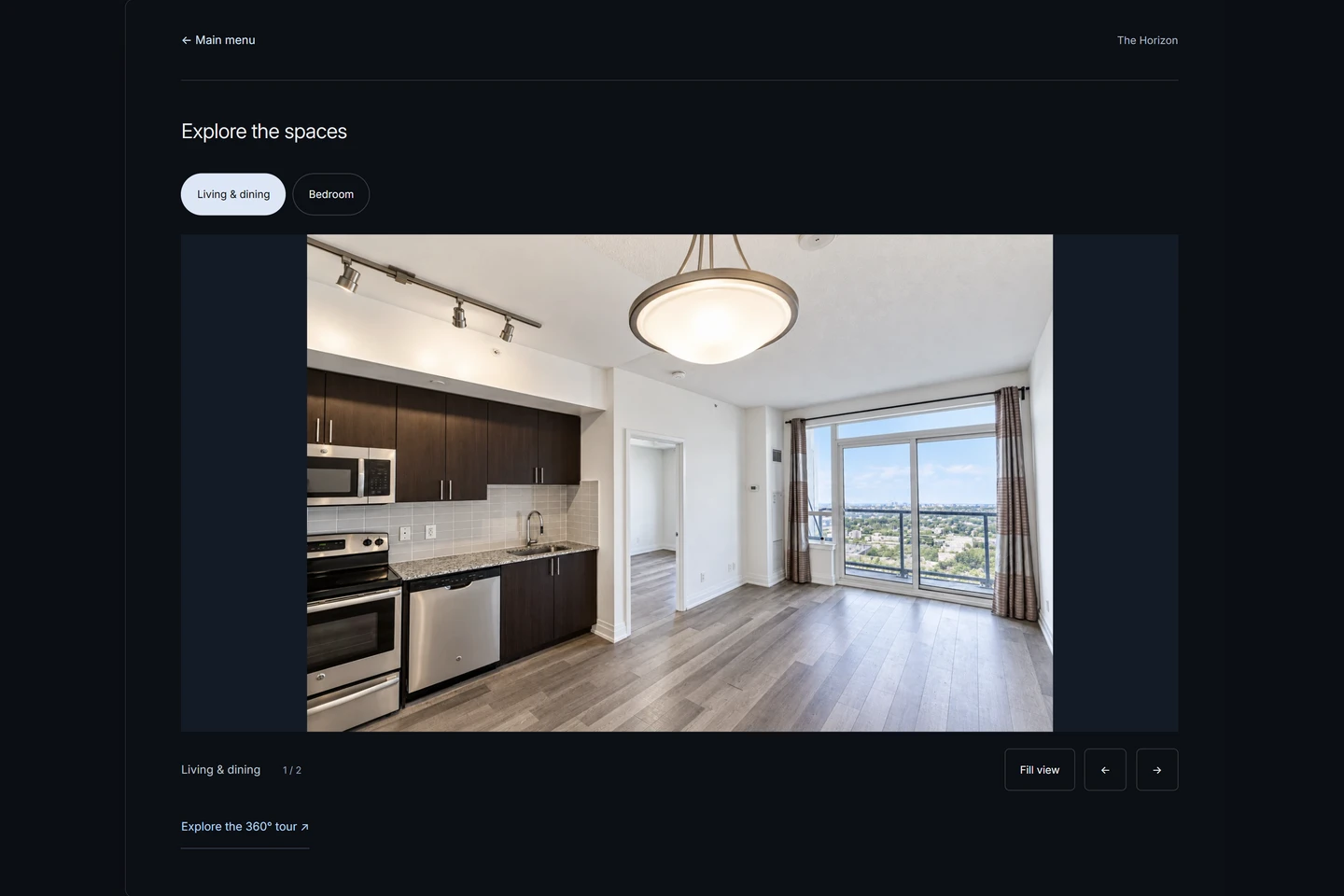
For a house, start with folders such as Exterior, Living room, Kitchen, Bedrooms, Bathrooms and Outdoor areas. Then separate individual rooms: two views of Bedroom 1 belong together, while Bedroom 2 needs its own gallery. Rename the spaces clearly in Arcvist; for several levels, enter floor prefixes manually.
Choose a useful overview first in each gallery, followed by views that explain a connection or detail. Leave out blurry duplicates and material from another property. The listing media preparation checklist covers file quality, permissions and privacy in more detail.
Add the plan versions you actually have.
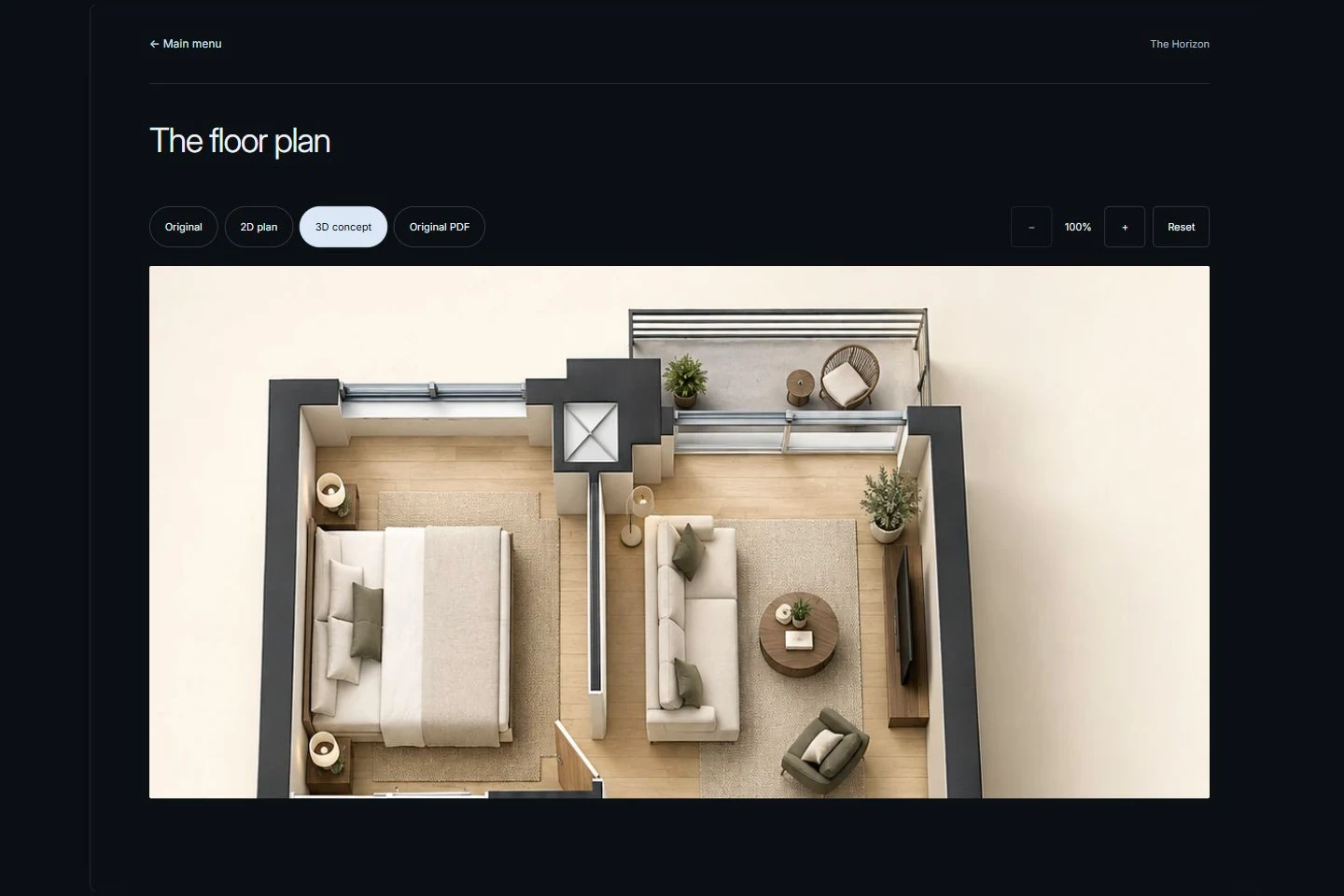
A supplied plan can help a buyer relate a room photograph to the rest of the building. Check its property, floor labels, legibility and rights of use before uploading it.
- Original: the supplied source plan image, with an optional original PDF kept available separately.
- 2D plan: a separately supplied presentation layout that should agree with the original.
- 3D concept: a supplied illustration of layout or furnishing, labelled as a concept rather than a measured record of current conditions.
Only supplied versions are available to viewers. Uploading a PDF does not produce a 3D model. When you configure a plan link to a room gallery, check that it opens the correct room.
Include a 360° view when it is available.
A regular photograph shows one framed view. A genuine spherical panorama lets someone look around from one capture point. A connected tour links several panorama scenes through configured hotspots. A navigable 3D environment has different geometry and movement; those terms are not interchangeable.
Add genuine panoramic files only where you have them. Check the initial direction and each hotspot destination. Ordinary photos do not automatically become spherical captures, and the browser panorama viewer does not establish headset VR support. Room galleries work without a tour.
Create one presentation in Arcvist.
- Choose a template. Preview the ten presentation designs and select the main menu that suits your available media.
- Add optional property information. Enter checked facts and the public details you intend to disclose. Required account access is separate from optional property fields.
- Organise available photographs. Name each space and group its views. Select an appropriate main photograph if available.
- Add optional panoramas. Associate each capture with the correct room and check any scene connections.
- Add optional plans and final details. Label supplied versions, review public contact information and check the content for private material.
- Preview and publish. Wait for saving and file processing, review desktop and mobile, then publish and copy the resulting presentation URL.
The final shared link opens directly at your selected template’s main menu. There is no additional cover screen. For the wider editing workflow, follow the photo-to-presentation tutorial.
Keep the information and its visibility current.
Correct specifications, replace outdated photographs and update public agent contact details as needed. Check availability statements wherever you entered them. Saved changes update an active publication at its existing short link; wait for processing and reopen that exact link before sending another message.
- Update the presentation
- Saved public changes appear through its active link. Review the recipient’s view after saving.
- Hide it from Explore
- The listing leaves Explore discovery while the active presentation link remains available. A recipient can still forward that URL.
- Unpublish the link
- New public page and media requests become unavailable. The project stays in your workspace. Republishing the retained project reuses its existing short link.
- Delete the project
- The project is marked deleted and its publication is deactivated. The current workspace provides a 30-day restore window; restoring the project does not automatically reactivate its publication.
Presentation short links carry noindex directives. Explore discoverability is a separate setting; hiding a presentation from Explore does not make its active link private. Unpublishing cannot retrieve downloaded files or force another service to refresh its cached preview.
Review permissions and the advertisement with your brokerage. RECO’s online advertising bulletin calls for current, accurate information, appropriate identification and consent. Check the dates and terms of your permission to use photo and video content.
A Toronto agent sharing a house presentation.
This is an illustrative workflow, not a real listing or a client result. An agent has approved photographs of the exterior, living room, kitchen, bedrooms, bathroom and garden, an existing plan and one genuine living-room panorama.
The agent groups the photos into named spaces, checks the plan against those names and adds the panorama to the living room. After choosing a template’s main menu and checking the public details, the agent previews it on a phone, publishes and sends the tested link in a buyer follow-up. A recipient can open Photos or the supplied plan directly from the menu.
Use the Toronto house presentation guide for multi-floor naming and outdoor spaces. For an apartment and shared amenities, use the Toronto condo guide. Both build on the same sharing process.
What can viewing insights tell an agent?
Arcvist’s optional presentation insights measure consented presentation views, estimated unique browsers, recorded engagement duration, popular spaces and contact-button interactions. They are separate from marketing-site GA4 and Explore discovery events.
A view is an opening event, not a lead. Estimated unique browsers use a random browser identifier; they do not identify a person or reliably combine several devices. Declined consent, blocked requests and a cleared browser can change the count. The owner’s signed-in viewing is excluded.
Engagement records available active viewing time, rather than proof someone read every detail. A popular room reflects recorded room openings. A contact click indicates a button interaction, not a sent email, answered call or property transaction. Use these signals to decide which content to clarify, then confirm a buyer’s questions through your normal conversations.
Common sharing mistakes to catch.
- Blurry or misleading images: review source resolution and identify digital alterations. Check that each image depicts the stated room.
- Stale facts: correct specifications, contact information and availability before reusing an old message.
- Broken contact destinations: test the actual email, phone and website actions after saving.
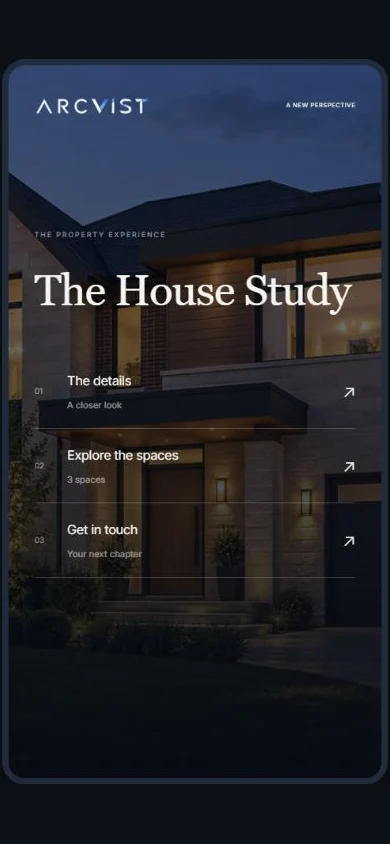
- Skipping the phone: read room labels, open galleries and inspect plan text at mobile width.
- Accidental discovery: review Explore visibility independently of the publication switch.
- Assuming a copied link was received: send it through the chosen channel and confirm access with the recipient where appropriate.
Common questions.
Can I share a property presentation without a 360° tour?
Yes. Use the photographs and information you have. Genuine panoramas are optional, and Arcvist does not turn ordinary photographs into complete 360° captures.
Can buyers open the presentation on their phones?
Yes. An active published link opens in a browser at the selected template’s main menu, without a buyer account. Check room names, image loading and contact links on a phone before sharing.
Can I update the presentation after sharing it?
Yes. Saved changes update an active publication at its existing short link. Wait for saving and media processing, then reopen the public link to verify the result. Republishing a retained project reuses its existing publication link.
Is a floor plan required?
No. All property information and media are optional. Add an original, 2D or 3D concept plan only when you have a suitable supplied file, permission to use it and a clear label.
Can I exclude a presentation from Explore?
Yes. Explore visibility is separate from publication. Hiding it from Explore removes discovery there while its active presentation link remains available to anyone who has it. An unlisted link can still be forwarded.
What happens if I unpublish the property?
New requests to the public presentation and its media become unavailable. The project stays in your workspace for editing and possible republication. Previously downloaded files or third-party cached previews cannot be recalled by unpublishing.