
How to Choose the Right Real Estate Presentation Template
Start with the photographs and facts you have. Choose a menu that helps a buyer find the layout, the rooms and the person to contact.
A compact urban condo may need a clear route to a supplied unit plan. A detached house may need room names that explain several floors and outdoor areas. A template gives those materials a visual order; the property remains the subject.
This guide concerns interactive presentations for prospective buyers. A PowerPoint deck used to pitch an agent’s services to a seller has a different purpose. Here, the reader chooses which property section to open. For a working commercial collection, explore Arcvist’s presentation templates.
What makes a useful property presentation template?
A good first screen gives a buyer a title, a sense of the property and a clear next step. Large photography helps only when its crop preserves useful detail. A room label such as “Second floor · Bedroom 2” should remain legible beside the picture.
- Hierarchy and navigation: distinguish the property title from section labels. Check how someone returns from a gallery to the menu.
- Readable information: keep specifications, descriptions and real public agent contact details easy to find.
- Useful grouping: place several views of the same room together. Several menu tiles do not necessarily mean several individual room galleries; inspect what each link opens.
- Flexible content: see what happens when a section has no data. Supplied plans and genuine panoramas should add useful routes when available.
- Mobile usability: check the actual words and photos at a narrow width, including touch controls and contact links.
Match typography and colour to the property and your approved identity. More animation does not establish better usability. A buyer should be able to explore without waiting for a graphic effect.
Choose the visual priorities for the property.
- Condominium
- Make the unit layout, individual rooms, balcony and actual outlook easy to understand. Include a supplied plan if available. Separate common amenities from the unit itself.
- Detached house
- Give the exterior a useful introduction, then organise rooms by floor and show how interiors connect to a garden, terrace or entrance. A wide exterior can support a photographic menu.
- Luxury residence
- Let careful photography, readable typography and unhurried browsing carry the presentation. Restrained movement can support the mood, provided the navigation stays obvious.
- Rental
- Prioritise direct links, clear room photographs and accurate practical details you are authorised to publish. A quieter menu can suit a brief set of material.
- Commercial space
- Lead with accurate supplied spatial information, useful plans and relevant facts. A precise visual style helps organise them but cannot establish zoning, measurements or permitted use.
These are design recommendations. We do not have comparative sales or conversion evidence that ranks one template above another.
Compare Arcvist’s ten presentation designs.
Each design gives the same available property content a different starting point. Compare the balance of photograph, title and navigation, then open a working preview to explore its sections.
These menus navigate available sections such as details, spaces, plans, panoramas and contact. They do not all give every room a separate button on the first screen.
| Design / preview | Visual approach and navigation | Consider it for | Phone check |
|---|---|---|---|
| Classic Luxury | Warm pale ground, centred serif title and framed portrait. Balanced text index below the photograph. | A formal house or residence with one strong lead image. | The portrait and links stack; inspect the tall crop. |
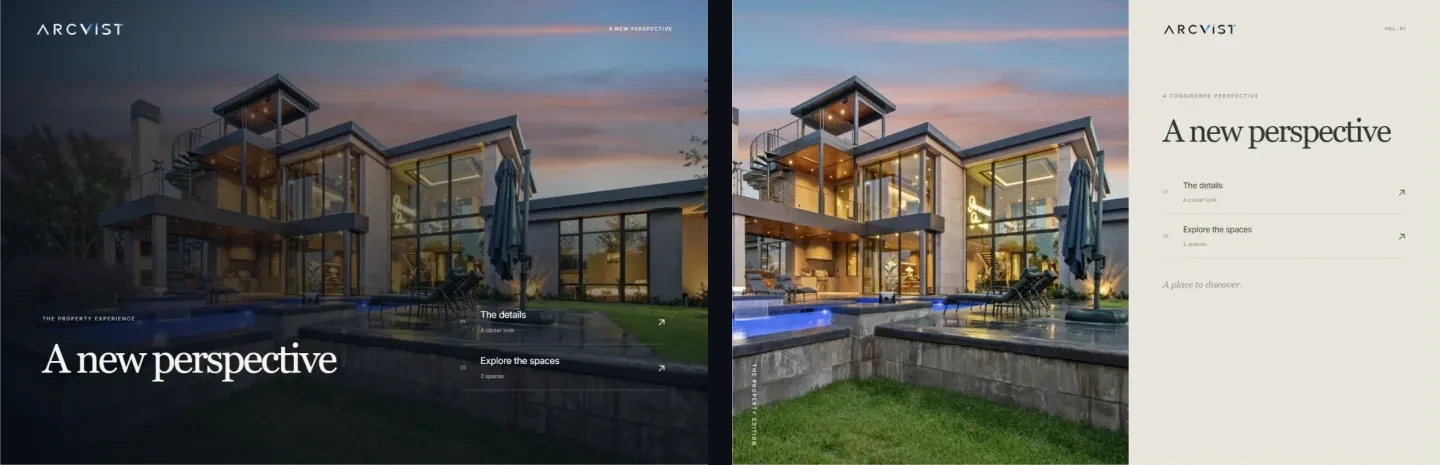
| Cinematic | Full-bleed photograph, serif title and dark shading. Numbered section links over the scene. | A house or luxury property with a strong wide exterior. | Title and links stack over a tighter photograph crop. |
| Editorial | Large left photograph beside a warm, magazine-like index. Numbered links in the separate text column. | A condo or house where photographs need room beside readable labels. | The index moves above the photograph; the buyer reaches links first. |
| Glass | A dark translucent panel over a full-screen photograph. Text links grouped inside the panel. | A photo-led property with a calm area behind the panel. | The panel fills more of the view; check contrast and crop together. |
| Minimal | Light ground, sans-serif title and a compact landscape photograph. Direct text links with little competing imagery. | A compact condo, rental or concise presentation with limited photos. | Image and links stack into a straightforward single column. |
| Signature | Deep green ground, circular image and a large italic serif title. Numbered links below the central composition. | A residence whose lead photo survives a circular crop. | The image and title dominate first; review long property names. |
| Gallery | Pale ground and photographic section tiles. Numbered image-led entries open the available sections. | A property whose available sections benefit from visual cues. | The first tile spans the width; later entries share a grid. Check each label. |
| Architectural | Blue-black ground, fine grid lines and a rectangular image frame. A precise numbered text index beside the image on desktop. | A house or commercial space where form and supplied facts matter. | Identity, image and links stack; supplied plans open in their own section. |
| Immersive | A full-screen photograph with a highlighted section and lower rail. Choose a rail item, then use Step inside to open that section. | A photo-led residence whose viewers can take time to explore. | Section choices form a two-column rail. Test selection, then Step inside. |
| Modern Grid | Pale green ground, a compact lead photo and modular section blocks. Numbered visual blocks with different spans on desktop. | A varied house, rental or commercial presentation with clear section labels. | The lead block spans the width; later blocks share a grid. Check their order. |
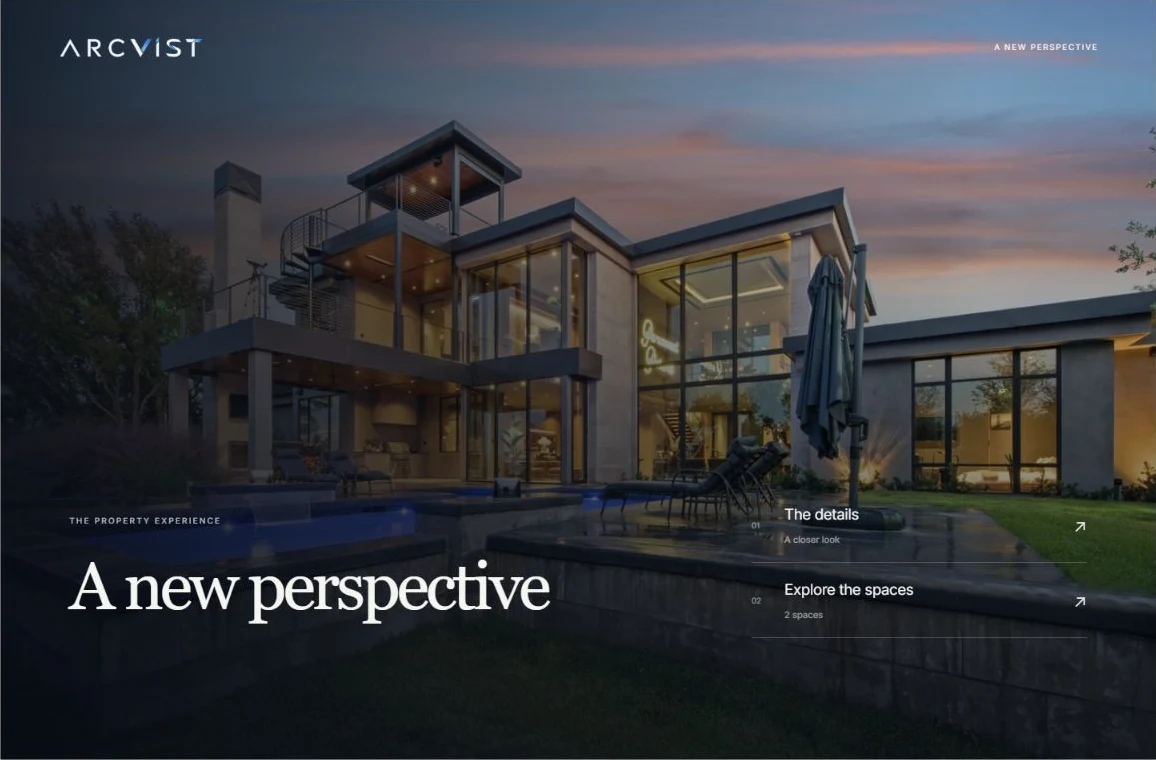
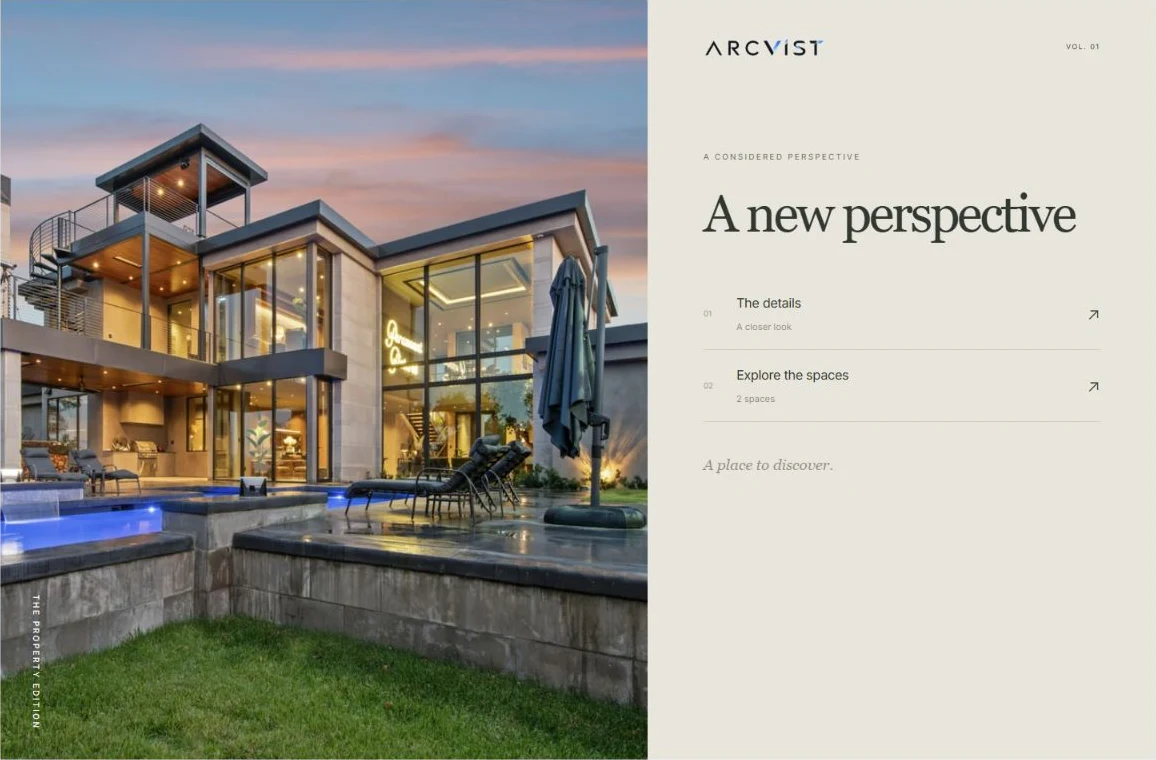
Both screenshots use the exact same sample data. Only the template ID changes. Cinematic places numbered links over the photograph; Editorial gives the index its own column. Neither creates additional property content.
Choose with your existing photographs open.
Make a short inventory before selecting a style. Use the listing media checklist to check image rights, orientation, room names and private information.
- Few photographs: try a compact image with direct text links, as in Minimal. Avoid repeating the same view just to fill a layout.
- Extensive room photography: organise it into named spaces. Gallery’s photographic section entries can introduce browsing, while the room galleries hold the individual views.
- A strong exterior: compare Cinematic’s wide scene with Editorial’s taller image region. Check what each crop removes.
- Interior-only photography: choose a representative room as the main image. A facade is not required; preserve useful windows, circulation and furniture context.
- Available plans: check labels and readability in the separate plan section. No menu style makes an unsuitable low-resolution plan legible.
- Available panoramas: use genuine spherical captures and inspect their starting direction and connections. A normal photo does not become a 360° tour through template selection.
Arcvist uses the files you supply. It does not automatically generate missing property photographs or infer facts. Preview your actual material before committing to a particular crop.
Review the mobile experience before publishing.
Open Mobile preview and follow the route a buyer would take: read the title, choose a section, open a room, browse its images, return to the menu and use a supplied contact link. Check that the contact button leads to the intended public email or phone number.
Look at text size, wrapping room names, image crops and touch targets. Immersive’s section choices and separate Step inside action need a different check from Minimal’s direct links. In a gallery, try swiping or using the visible controls and verify that you can close the image. Test supplied plans and panoramas separately.
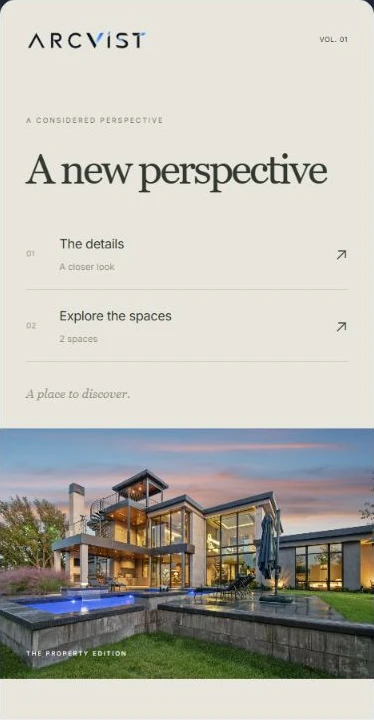
Finally, open the published URL on a phone and a typical connection. A desktop browser’s mobile preview checks layout; it cannot reproduce every device, network or email application. Allow images to finish loading and check that controls stay in place. Large files can slow any design.
Use cinematic design when the image can carry it.
A wide architectural photograph can explain a house’s exterior, entrance and outdoor setting in one view. Cinematic keeps that photograph behind the title and numbered menu. Its restrained entrance movement can support the introduction while section links remain available.
The trade-offs are concrete: text needs contrast against the scene, a phone crops the sides, and a weak source photograph becomes more noticeable at full width. Respect reduced-motion preferences and keep the buyer’s next action clear. Arcvist’s menu does not require a heavy 3D or WebGL scene to create this visual treatment.
Use a quieter design when quick orientation matters.
For a compact rental or a short set of approved photographs, a compact image and direct text links may be enough. Minimal separates the title, image and index on a light ground. Editorial also provides a quiet text area, with a larger photograph on desktop.
Reduced visual complexity does not guarantee better results. A property with a carefully photographed exterior may benefit from giving that scene more space. Compare the same content in two designs and ask which makes the important material easier to reach.
Three illustrative Toronto choices.
These examples are hypothetical content decisions, not real listings, transactions or customer results.
A condominium with an interior photo set
The agent has living, kitchen, bedroom and balcony photographs plus an approved unit plan. Start with Minimal or Editorial: a buyer can choose the spaces and supplied plan without a large exterior image. On a phone, check that the balcony crop shows the actual outlook and that plan text remains readable. See the Toronto condo presentation guide for separating unit and building amenities.
A detached house across several floors
The available set includes an exterior, interior rooms and garden photographs. Compare Cinematic’s scene-led start with Modern Grid’s modular section index. A buyer opens Explore the spaces and then chooses named rooms such as “Main floor · Kitchen”. Check those long names and the exterior crop on mobile. The house presentation guide covers room and floor organisation.
A luxury residence with a strong lead image
The agent has high-resolution architecture and interior photographs, checked details and public contact information. Try Classic Luxury for a formal, centred index or Cinematic for a wide architectural scene. A buyer still reaches ordinary content sections from the menu. Check the portrait crop in Classic Luxury and the overlay contrast in Cinematic; price or prestige alone does not determine the right layout.
For the broader professional workflow, see property presentations for Toronto real estate agents.
How to choose a template in Arcvist.
- Open the creation process. From Templates, open a working preview and choose its starting action. Sign in or create an account when prompted; the selected design is carried in the return URL.
- Review the available templates. In the template stage, select a design or preview your content in desktop and mobile modes.
- Choose the design. The selected state identifies the current template. You can change it later without deleting the property content.
- Add optional content. Continue through information, photos, panoramas, plans and final details. Every property field and upload is optional, and all stages are skippable.
- Preview the selected menu. Wait for saving and file processing. Check the available sections, room galleries and supplied contact details.
- Publish and share. The published presentation begins directly at the chosen main menu. Open its URL signed out and review the buyer’s view before sending it.
Saved edits to an active publication update its existing link. Recheck that public link after changing the template. The creation tutorial explains the full workflow, and the sharing guide covers updates and visibility.
Avoid the choices that obscure the property.
- Choosing by colour alone while ignoring navigation and photo crops.
- Reviewing only desktop, leaving long labels or contact controls unchecked on mobile.
- Adding movement that delays a buyer from opening a section.
- Picking a photo-led layout for material that cannot support its crop.
- Leaving descriptions or supplied plans too small to read.
- Overloading names and menu labels with repeated marketing phrases.
- Publishing before reviewing the actual available content.
Common template questions.
Which real estate presentation template is best for a condo?
Start with the unit’s actual material. Minimal offers a compact photo and direct links; Editorial separates its photograph and text index on desktop. Compare both with your unit photos, room names and any supplied plan. These are design suggestions, not measured sales rankings.
Should a luxury listing use a cinematic layout?
Cinematic is a reasonable choice when a wide, high-quality lead photograph explains the property. Check its dark overlay, phone crop and navigation. Editorial or Classic Luxury can suit the same property when a quieter index makes the content easier to read.
Can I change the selected template later?
Yes. Change style in the creation workflow and preview your existing content in another design. Changing the template preserves the property content. On an active publication, saved changes update the existing link, so check the public result after saving.
Do I need a floor plan or 360° tour?
No. Supplied floor plans and genuine spherical panoramas are optional. Use them when available and appropriate. Arcvist does not automatically generate missing photography, measurements or panoramas.
Which templates work on mobile?
All ten have responsive menu layouts. Use Mobile preview to check your chosen design, then review the published link on a phone. Navigation, cropping and section order differ between designs, so a responsive layout still needs a content-specific check.
Can I build a presentation with limited property information?
Yes. Every property field and upload is optional, and each creation stage is skippable. The menu exposes the available content. An empty presentation can publish, but useful, accurate photographs and facts give a buyer more to explore.
Find the Right Look for Your Property.
Explore Arcvist’s interactive presentation designs and create a property experience that fits your listing.